TradingView Webhook Not Working? 12 Fixes That Isolate the Failure (2026)
A TradingView webhook not working is not one problem. The failure can occur before the alert fires, while TradingView delivers the POST request, inside your receiver, or after an automation bridge tries to create an order. This guide separates those layers so you can fix the failed stage without blindly rebuilding everything.
Last fact-checked: September 25, 2026 · U.S. market and EN-US workflow
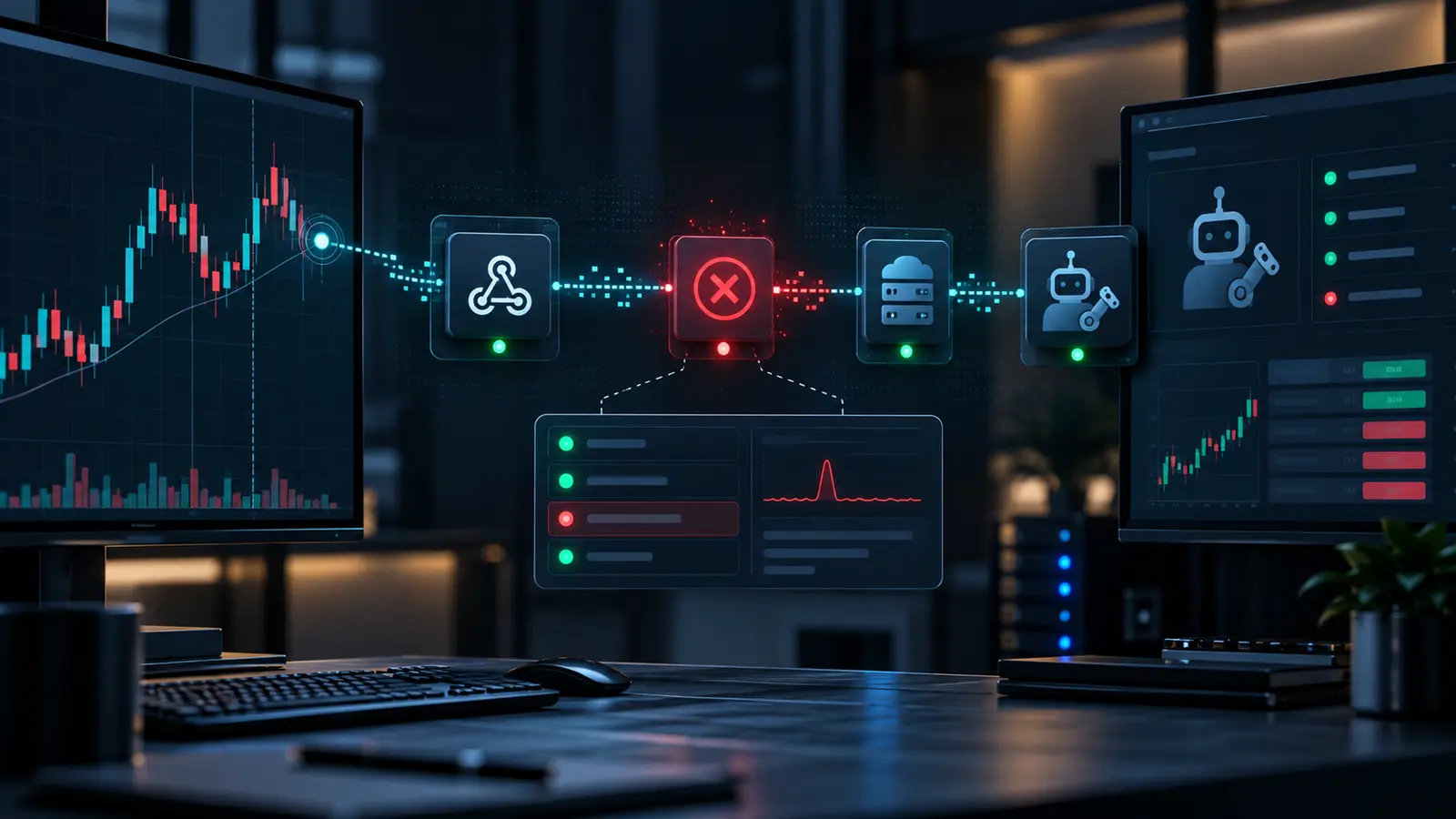
TradingView Webhook Not Working: Locate the Failed Layer First
The fastest investigation uses evidence, not guesses. Treat a TradingView webhook not working incident as a five-stage chain. Each stage must produce a timestamped artifact before the next stage can be blamed.
| Stage | Evidence to inspect | If evidence is missing | Primary owner |
|---|---|---|---|
| 1. Pine or chart condition | Realtime condition, script state, alert configuration | Debug condition, runtime error, repainting, or frequency | Strategy logic |
| 2. TradingView alert | Alert Log entry and trigger time | Check activation, expiration, snapshot, and rate halt | TradingView setup |
| 3. Webhook delivery | Webhook status and HTTP result | Check URL, port, TLS, public reachability, and timeout | Network/receiver |
| 4. Receiver or bridge | Request ID, parsed payload, decision log | Check JSON schema, authentication, deduplication, and routing | Automation service |
| 5. Broker or exchange | Order acknowledgement, fill, reject, open orders, position | Check permissions, market mapping, size rules, buying power, and venue state | Execution venue |
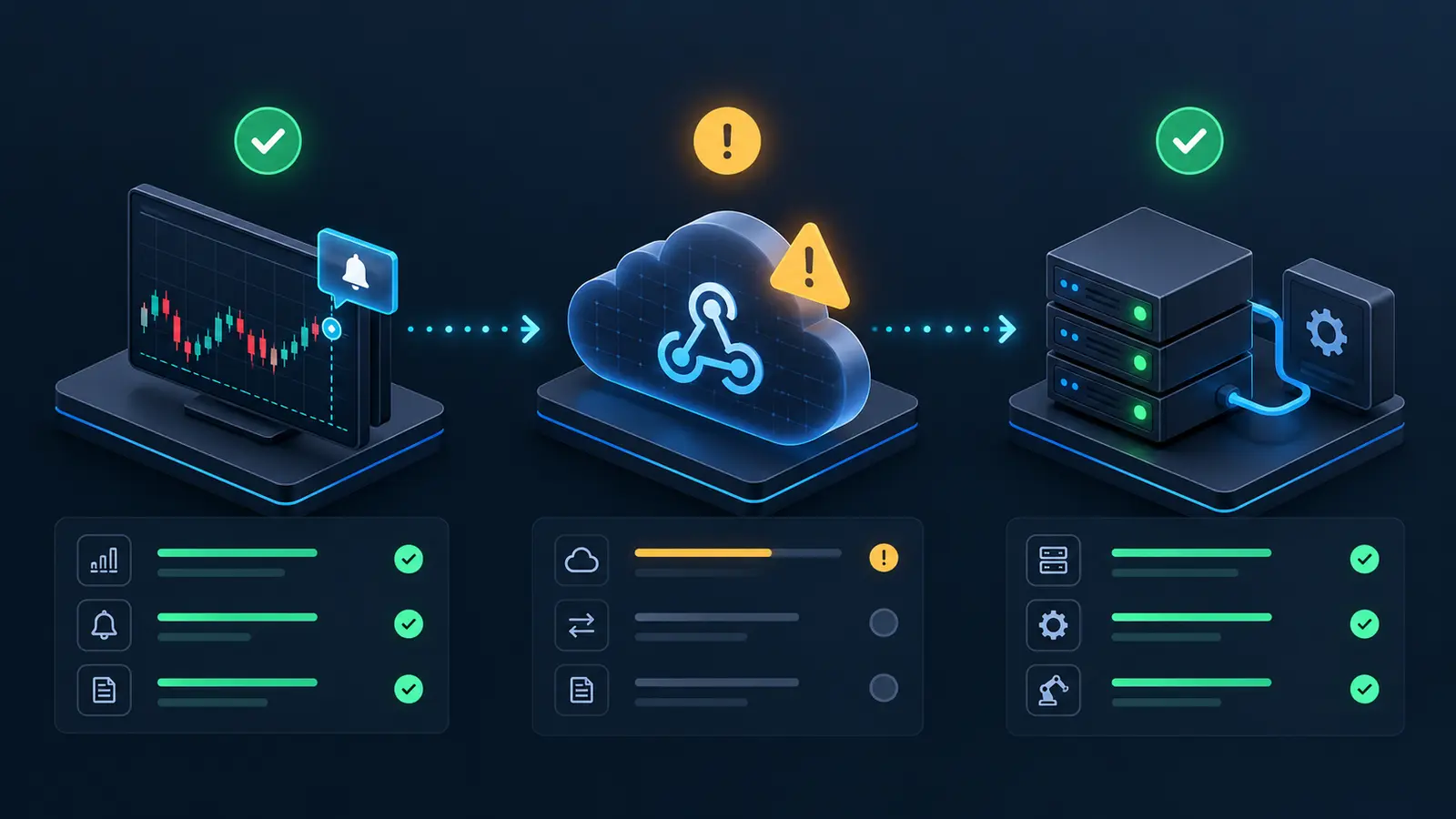
Interactive TradingView Webhook Not Working Diagnostic
Use this local browser tool when a TradingView webhook not working symptom appears. It sends no data and places no trades. Choose the evidence you actually observed, not what you expected to happen.
Find the next evidence check
12 Fixes When TradingView Webhook Not Working
Run these checks in order. A TradingView webhook not working workflow becomes harder to diagnose when several settings are changed at once. Save screenshots, UTC timestamps, alert IDs, sanitized request bodies, response codes, and downstream decision IDs for every test.
Confirm the alert exists in the Alert Log
If no entry exists, the webhook was never the first failure. TradingView’s Pine documentation recommends checking the Alert Log to verify that an alert occurred. Confirm the chart symbol, timeframe, alert condition, activation state, and expiration. A marker on a historical chart or a backtest event is not proof that a realtime alert fired.
Recreate the alert after Pine or input changes
TradingView saves a server-side snapshot of the script, inputs, symbol, and timeframe when the alert is created. Later chart or code edits do not update that running copy. If the TradingView webhook not working problem began after an edit, delete and recreate the alert with the intended context, then record the new alert ID.
Check runtime errors, repainting, and trigger frequency
A Pine runtime error can stop the script instance. Intrabar conditions can also disappear after the bar closes, creating apparent inconsistencies. TradingView states that more than 15 alerts within three minutes automatically halts further alerts. Inspect the log, choose frequency deliberately, and test confirmed-bar logic separately from intrabar logic.
Verify 2FA and webhook notification settings
TradingView requires two-factor authentication for webhook alerts. Confirm that the Webhook URL notification is enabled on the exact alert you are testing. Do not assume a saved URL on another alert or a visible Pine condition automatically creates a running webhook.
Use a public endpoint on an accepted port
TradingView documents ports 80 and 443 only and says IPv6 is not currently supported for webhooks. A localhost address, private IP, unreachable domain, redirecting URL, or unsupported port can make a TradingView webhook not working report look like a Pine issue. Test DNS, HTTPS, certificate validity, path, and public reachability from outside your network.
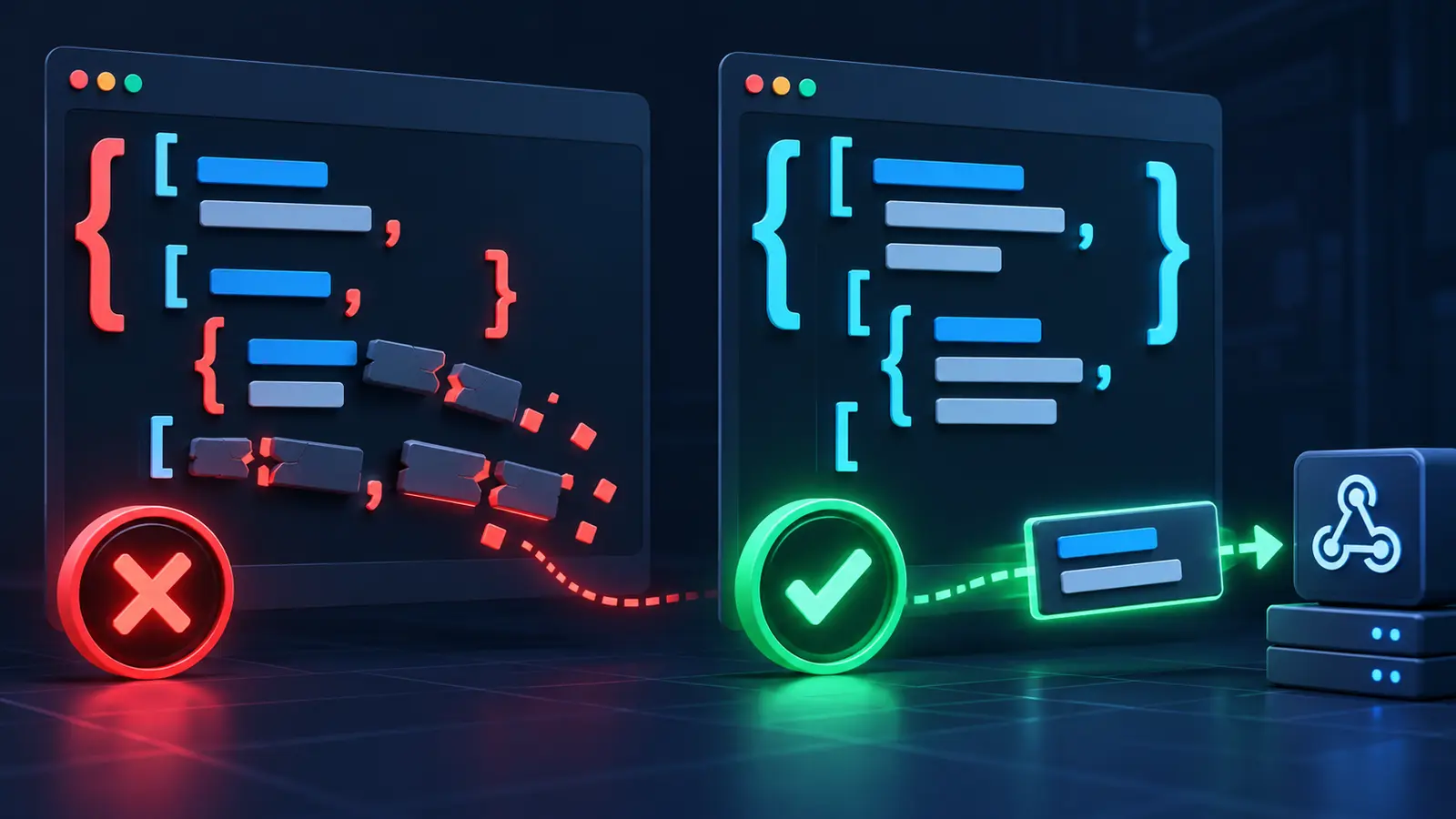
Make the alert message valid JSON
When the message is valid JSON, TradingView sends
Content-Type: application/json; otherwise it usestext/plain. One stray comma, unescaped quote, or malformed placeholder can send a different content type or make the receiver reject the body. Validate the final expanded payload, not only the template.Acknowledge the request in under three seconds
TradingView cancels a webhook request when the remote server takes longer than three seconds to process it. The receiver should authenticate, perform minimal validation, durably record the request, and respond quickly. Exchange calls, order planning, notifications, and retries belong in a background worker. A slow all-in-one handler is a common TradingView webhook not working cause.
Read the exact webhook status
TradingView’s Webhook status column is more useful than a generic failure message. A 3xx usually means redirection. A 4xx points toward the URL, access, request parameters, invalid JSON, or receiver-side rate limiting. A 5xx or timeout points toward server availability or processing. Copy the exact status and timestamp before changing anything.
Inspect WAF, proxy, and receiver logs
Match the TradingView timestamp to edge, load balancer, application, and queue logs. If the edge saw a request but the app did not, inspect proxy routing and security rules. TradingView publishes webhook sender IPs for allowlisting, but your implementation should follow current official documentation rather than a copied list that may become stale.
Validate bridge schema and market mapping
A successful HTTP response does not prove an order was valid. Confirm required keys, allowed actions, symbol format, asset class, account, quantity semantics, order type, session rules, and permissions. A TradingView webhook not working complaint can actually be a correctly received signal that the bridge rejected for a valid safety reason.
Use idempotency and never retry an unknown order blindly
Give each signal a stable unique ID and persist it before order submission. If a downstream order attempt times out, reconcile broker or exchange state before resubmitting. Blind webhook or order retries can turn a missing-action incident into duplicate exposure. See our crypto trading bot failure modes framework for containment rules.
Repeat the test in paper mode, then reconcile
Run one controlled entry and one controlled exit with minimal paper size. Compare alert time, receipt time, parsing result, decision, broker acknowledgement, fill, fees, open orders, and final position. If the TradingView webhook not working incident cannot be reproduced safely, keep live auto-submit disabled and monitor a longer paper sample.

TradingView Webhook Not Working: Status and Root-Cause Matrix
When a TradingView webhook not working alert has a log entry, classify the observed status before touching Pine code.
| Observed evidence | Most likely investigation | Do not conclude |
|---|---|---|
| No Alert Log entry | Condition, activation, expiration, snapshot, runtime error, frequency halt | Do not blame the receiver yet |
| 3xx | Changed path, authentication redirect, proxy redirect | Do not assume the POST reached the intended handler |
| 4xx | Endpoint, authorization, schema, JSON, request limit | Do not retry unchanged input repeatedly |
| 5xx | Receiver outage, dependency failure, application exception | Do not assume the downstream order is absent |
| Timeout | Response exceeded three seconds, overload, network path | Do not equate timeout with no side effect |
| URL/TLS/connection error | DNS, certificate, HTTPS, private address, unsupported port, reachability | Do not edit strategy logic first |
| 2xx but no order | Parser, bridge rule, account, broker reject, market mapping | Do not treat HTTP success as execution success |
Safe JSON Pattern When TradingView Webhook Not Working
This schematic payload helps isolate a TradingView webhook not working issue because it includes a symbol, action, signal price, timeframe, and traceable signal ID. Your receiver’s official schema is authoritative, so rename or remove fields as required.
{
  "ticker": "{{ticker}}",
  "action": "buy",
  "price": "{{close}}",
  "timeframe": "{{interval}}",
  "signalId": "{{ticker}}-{{interval}}-{{timenow}}"
}
Do not place passwords, broker credentials, exchange API secrets, or private account data in the body. TradingView explicitly warns against including sensitive credentials in webhook messages. Keep secrets server-side, validate a receiver-specific token or signature pattern where supported, and redact URLs before sharing logs.
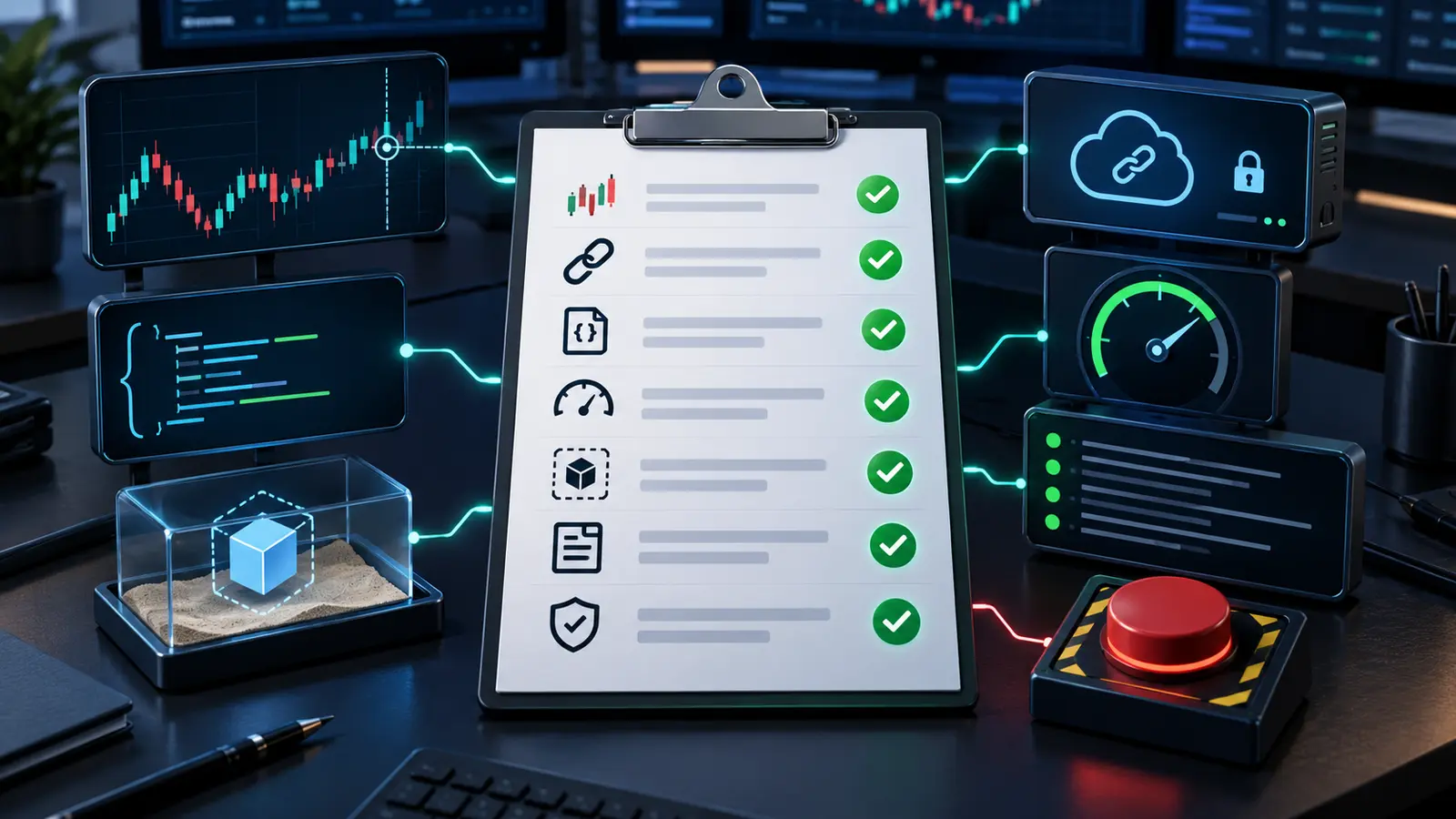
Pre-Live Test Protocol After TradingView Webhook Not Working
A repaired TradingView webhook not working flow is not ready for live money after one successful POST. It must demonstrate repeatable delivery, safe rejection, visible state transitions, and correct reconciliation.
- Create a fresh alert after finalizing the Pine script, inputs, symbol, timeframe, message, frequency, and expiration.
- Send a valid paper signal and retain UTC timestamps from TradingView, receiver, bridge, and broker.
- Send malformed JSON and confirm rejection before order creation.
- Send a duplicate signal ID and confirm that it cannot create a second order.
- Delay the worker while the receiver still acknowledges quickly and records the queued state.
- Simulate a broker reject and verify that the dashboard does not label it filled or successful.
- Test entry and exit independently; confirm open orders, fills, fees, and final position against the venue.
- Trigger the emergency stop and verify its effect on new entries, exits, open orders, and existing positions.
- Run the workflow across enough paper events to observe ordinary latency and failure handling.
Use our crypto bot paper-trading test plan for a broader pre-live gate, and apply the exposure controls in our crypto trading bot risk-management guide. A working webhook cannot turn an unvalidated strategy into a safe or profitable system.
TradingView Webhook Not Working: Best For, Limits, and Costs
Best for
- Users whose alert fires but the automation result is missing.
- Pine users separating signal logic from webhook delivery.
- Teams that can inspect receiver and broker logs.
- Paper-trading workflows with explicit IDs and reconciliation.
Not for
- High-frequency or sub-second execution assumptions.
- Workflows with no logs, no paper mode, or no emergency stop.
- Anyone expecting webhook success to prove profitability.
- Users unwilling to verify venue state after ambiguous outcomes.
Pros of a logged webhook bridge
- Separates receipt, parsing, decision, order, and fill evidence.
- Reduces black-box troubleshooting time.
- Can centralize schema validation and account routing.
- Supports paper tests before auto-submit.
Cons and hidden costs
- Charting, bridge, market-data, broker, and VPS fees can stack.
- More components create more failure boundaries.
- Monitoring, alert maintenance, and incident review require time.
- Slippage, spread, commissions, and rejects remain after delivery works.
A TradingView webhook not working investigation also reveals whether the stack’s maintenance burden is acceptable. If repeated incidents make the stack unsuitable, compare architectures in our best TradingView alternatives guide. Changing platforms should follow measured evidence; it should not replace debugging.
TradingView Webhook Not Working FAQ
Why is my TradingView webhook not working even though the alert fired?
If the Alert Log contains the event, inspect its Webhook status. A TradingView webhook not working after the alert fires points to the URL, connection, TLS, JSON, receiver, or response time. A successful status with no order moves the investigation to parsing, bridge rules, account settings, broker rejection, and venue state.
Why does TradingView show a webhook timeout?
TradingView states that it cancels a request when the remote server takes longer than three seconds to process it. Return a fast acknowledgement after durable receipt and perform slower trading work asynchronously. Then reconcile whether any downstream side effect occurred.
Does editing my Pine script update an existing alert?
No. TradingView documents that alert creation saves a snapshot of the script, its inputs, symbol, and timeframe. Delete and recreate the alert after relevant changes so the server-side copy uses the intended context.
Why is my JSON received as text/plain?
TradingView uses application/json when the alert message is valid JSON and text/plain otherwise. Validate the fully expanded message for quotation marks, commas, brackets, placeholders, and the receiver’s required schema.
Can a 2xx webhook status prove that a trade executed?
No. It proves only that the receiver accepted the HTTP request according to its response. The bridge may later reject the signal, the broker may reject the order, or the order may remain open or partially filled. Verify the venue-confirmed order, fills, fees, and position.
Should I retry when a webhook or order status is unknown?
Not blindly. Use a stable signal ID, inspect receiver and venue records, and reconcile first. Repeating an action with an ambiguous side effect can create duplicate orders or exposure.
Can TradingView webhooks guarantee profitable automation?
No. Webhooks transport alert messages; they do not validate strategy edge, liquidity, costs, sizing, broker behavior, or risk controls. Backtest without leakage, paper-test the full execution path, and use loss and exposure limits before considering live deployment.
Final Verdict
Evidence-first workflow
A TradingView webhook not working incident should be isolated at the first missing artifact: Alert Log, webhook status, receiver record, bridge decision, or venue-confirmed order state. The highest-value fixes are usually recreating stale alert snapshots, validating final JSON, using a public supported endpoint, acknowledging within three seconds, logging every state transition, and reconciling before any retry.
Do not restore live auto-submit while order or position state is unknown.
Primary sources
- TradingView — How to configure webhook alerts
- TradingView — What webhook errors mean
- TradingView Pine Script — Alerts FAQ
- TradingView Pine Script — Alert concepts
- TradersPost — Webhook troubleshooting documentation