NinjaTrader Order Rejected 2026: Causes, Error Messages & Fixes Guide
NinjaTrader Order Rejected is the status you see when an order is refused before it becomes an active working order. In 2026, NinjaTrader documents that a Rejected order can be rejected locally, by the connectivity provider, or by the exchange. The exact cause can range from invalid order prices and insufficient margin to unsupported order instructions, contract restrictions, account risk controls, or strategy-generated errors. The fastest way to fix the problem is to read the exact rejection message, identify which layer rejected the order, and correct the underlying condition rather than repeatedly resubmitting the same instruction.
Quick Answer: A NinjaTrader Order Rejected message means the order did not become a valid working order. Check the Orders tab and Log tab for the exact broker or exchange message. Common causes include an invalid stop price, insufficient margin, unsupported Time in Force, account or position limits, an expired or restricted futures contract, or an automated strategy submitting an order the broker will not accept. Fix the cause first, then submit a valid order.
Affiliate Disclosure: TradeboticsAI may receive compensation if you register or complete an eligible action through links on this page, at no additional cost to you. This does not affect our editorial analysis.
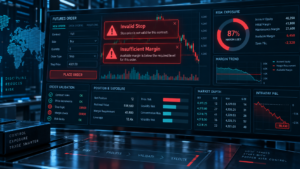
What Does NinjaTrader Order Rejected Mean?
NinjaTrader Order Rejected is an order state, not a fill state. NinjaTrader’s official order-state documentation lists Rejected as an order that was rejected locally, by the connectivity provider, or by the exchange. That distinction matters because the cause is not always inside NinjaTrader itself.
An order normally moves through states such as Initialized, Submitted, Accepted, and Working before it is filled or canceled. If it reaches Rejected, it has reached a terminal state and is no longer active. A rejected order will not suddenly begin working later unless you correct the problem and submit a new valid instruction.
For the official definition, see NinjaTrader’s Order State Definitions.
Where to Find the Exact NinjaTrader Order Rejected Error
The first step after a NinjaTrader Order Rejected message is to avoid guessing. Open the Control Center and review the order information and Log tab. For strategy-generated orders, NinjaTrader’s OnOrderUpdate() framework exposes both an ErrorCode and a native error string supplied by the broker.
The useful information can include:
- the instrument and contract month;
- Buy or Sell direction;
- quantity;
- order type;
- limit and stop prices;
- Time in Force;
- the order state;
- the error category;
- the broker or exchange native error message.
NinjaTrader’s developer documentation includes error categories such as OrderRejected, OrderRejectedByRisk, UnableToSubmitOrder, UnableToChangeOrder, and UnableToCancelOrder. The native broker message is often the most useful clue because it can explain the specific invalid condition.
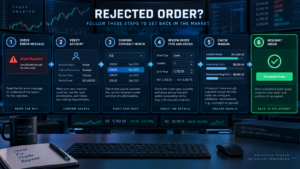
Common NinjaTrader Order Rejected Causes
A NinjaTrader Order Rejected event can have several causes. The exact message should always take priority over a generic troubleshooting list, but the following categories cover many practical cases.
| Possible Cause | What It Means | What to Check |
|---|---|---|
| Invalid stop or limit price | The submitted price conflicts with the current market or order rules. | Stop direction, current bid/ask/last, tick size, stop-limit relationship. |
| Insufficient margin | The account cannot support the requested exposure. | Buying power, excess margin, open positions, quantity. |
| Unsupported TIF or instruction | The connection or broker does not support the requested order setting. | Day/GTC/GTD support and connection technology. |
| Risk or position limit | The requested order exceeds an account or product risk control. | Position limits, max open positions, quantity, account rules. |
| Expiration or delivery restriction | The selected contract is near or inside a restricted expiration window. | Contract month, First Notice Date, Last Trade Date, broker roll deadline. |
| Strategy logic error | Automation submitted an order that the broker or exchange would not accept. | OnOrderUpdate(), native error, strategy parameters, order prices. |
Invalid Stop Price and Stop Limit Rejections
One of the most common technical examples of NinjaTrader Order Rejected is an invalid stop price. A sell stop is normally placed below the current market, while a buy stop is normally placed above the current market. If the market moves before the order arrives, a previously valid stop price can become invalid.
NinjaTrader support examples show native errors such as a sell stop being rejected because it was placed above the market. A fast-moving futures contract can cross the intended trigger between strategy calculation and broker submission.
Stop Limit orders add another relationship to verify: the stop price triggers the order, while the limit price controls the acceptable execution range. If those values are invalid relative to the side of the order or current market, the order can be rejected.
Before resubmitting, verify:
- whether it is a buy stop or sell stop;
- the current market price;
- the contract tick size;
- the exact stop price;
- the exact limit price for Stop Limit;
- whether price moved through the intended trigger before submission.
For a complete explanation of Market, Limit, Stop Market, Stop Limit, and MIT behavior, see our NinjaTrader Order Types 2026 guide.
NinjaTrader Order Rejected Because of Margin or Buying Power
A broker can reject an order when the requested position would exceed available margin or account risk capacity. This can happen even when the account contains cash because futures margin depends on the contract, quantity, existing positions, unrealized P&L, and the current intraday or initial-margin requirement.
A NinjaTrader Order Rejected margin message can become more likely when:
- contract quantity is too large;
- existing positions already consume significant margin;
- open losses reduce account equity;
- intraday margin has been temporarily increased;
- the order would remain open into the higher initial-margin period;
- another working order could increase account exposure if filled.
Check Buying Power, Excess Intraday Margin, Excess Initial Margin, and current margin requirements before trying a smaller quantity. Do not reduce size randomly until an order happens to pass. Understand the actual requirement first.
See our NinjaTrader Buying Power 2026 and NinjaTrader Excess Margin 2026 guides for the full account-capacity workflow.
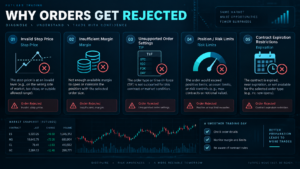
Time in Force and Unsupported Order Settings
Not every brokerage connection supports every order instruction. NinjaTrader documents that available Time in Force choices depend on the selected connection technology. An unsupported instruction can therefore result in a rejected or modified order depending on the provider.
If a NinjaTrader Order Rejected event appears after changing Day, GTC, GTD, or another advanced setting, verify whether the selected account connection supports that instruction. This is particularly important for automated strategies copied from one connection environment to another.
For current TIF behavior, see our NinjaTrader Time in Force 2026 guide.
Position Limits and Account Risk Controls
An order can also be rejected because it would exceed a position or account risk threshold. NinjaTrader documents contract-specific position limits and also provides a separate Max Number of Open Positions control that can reject new opening orders after the configured limit is reached.
In this situation, available margin alone does not guarantee that the order can be accepted. The account can have enough buying power but still be blocked by an exposure rule.
Review:
- current long and short quantity;
- the requested new quantity;
- contract-specific position limits;
- Max Number of Open Positions;
- working orders that could add exposure;
- other broker-side risk controls.
For the distinction between margin capacity and exposure controls, see our NinjaTrader Position Limits 2026 guide.
Contract Expiration and Delivery Restrictions
A futures order can be invalid because the selected contract month is no longer the appropriate contract to trade or has entered a restricted delivery-risk period. This is especially important for physically deliverable futures.
NinjaTrader’s current position-management policy restricts trading in physically deliverable contracts around the earlier of the First Notice Date or Last Trade Date. An order in a restricted contract can therefore fail even though the symbol still appears in a chart or instrument list.
Before treating the event as a platform error, verify the contract month and current expiration status. For detailed rules, see our NinjaTrader Futures Expiration 2026 guide.
NinjaTrader Order Rejected in Automated Strategies
Order rejection deserves extra attention in automated trading because the strategy may still have open positions, working orders, or internal logic that assumes the rejected order was accepted.
NinjaTrader’s current RealtimeErrorHandling documentation states that the default strategy behavior is StopCancelClose. When a strategy-generated order is rejected, the default behavior stops the strategy, cancels remaining working orders, and submits a Close order for each unique open position managed by the strategy.
NinjaTrader also provides advanced options that can ignore errors or ignore some rejection behavior, but its documentation warns that doing so can have serious adverse effects unless the programmer has implemented custom order rejection handling in OnOrderUpdate().
For advanced developers, OnOrderUpdate() provides:
- OrderState;
- ErrorCode;
- the broker’s native error string;
- quantity and filled quantity;
- average fill price;
- limit and stop prices;
- the time the state changed.
A custom strategy should never assume that an order submission equals an accepted order. Rejection handling should be treated as part of the strategy’s risk architecture, especially for protective stops.
How to Fix a NinjaTrader Order Rejected Error
Use this sequence rather than changing several settings at once:
- Read the exact rejection message. Record the native broker or exchange text.
- Confirm the account. Make sure you are using the intended live or simulation account.
- Confirm the instrument. Check symbol and futures contract month.
- Check direction and quantity. Verify Buy/Sell and contract size.
- Review the order type. Confirm Market, Limit, Stop Market, Stop Limit, or MIT is appropriate.
- Validate prices. Make sure stop and limit values remain valid relative to the current market.
- Check margin. Review buying power and excess margin.
- Check risk limits. Review position limits and account controls.
- Check TIF support. Verify the selected connection supports the requested instruction.
- Check expiration. Make sure the contract is still tradable under broker rules.
- For automation, inspect the Log and strategy state. Do not restart blindly after a rejection.
- Resubmit only after the cause is corrected.
If the rejection message is unclear or appears inconsistent with the order details, preserve the exact time, account, instrument, order ID, and Log information before contacting NinjaTrader support. That evidence makes troubleshooting faster than describing the error from memory.
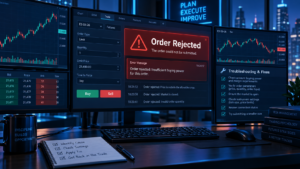
How to Prevent NinjaTrader Order Rejected Errors
You cannot eliminate every NinjaTrader Order Rejected event because brokers, exchanges, volatility, and risk controls can change. You can reduce avoidable errors with a disciplined pre-order process.
- use the correct contract month;
- check current stop and limit prices immediately before submission;
- avoid operating at the maximum available margin;
- monitor temporary margin changes around major events;
- verify TIF support on the selected connection;
- review contract expiration and delivery dates;
- keep automated strategies prepared for rejected orders;
- watch the Orders and Log tabs after changes to live orders;
- test new automation in simulation before live deployment.
For discretionary traders, many rejection errors are preventable with a five-second review of account, contract, order type, quantity, price, and TIF. For automated traders, the same checks need to exist in code. A NinjaTrader Order Rejected alert becomes much easier to resolve when the original order parameters are documented before any changes are made.
NinjaTrader Order Rejected Checklist
When an order is rejected, check these items in order:
- exact native rejection message;
- correct account;
- connection status;
- correct instrument and contract month;
- Buy or Sell direction;
- quantity;
- order type;
- stop and limit prices;
- tick-size validity;
- Time in Force;
- available margin and buying power;
- position and risk limits;
- expiration or delivery restrictions;
- strategy state if automation submitted the order.
A NinjaTrader Order Rejected event should be treated as information. The rejection tells you that one part of the order, account, market, or automation workflow did not satisfy the current rules. The correct response is diagnosis, not repeated submission. Recording each NinjaTrader Order Rejected message also helps identify recurring strategy or account configuration problems.

NinjaTrader Order Rejected FAQ
What does NinjaTrader Order Rejected mean?
It means the order was refused and did not become an active working order. NinjaTrader states that rejection can occur locally, at the connectivity provider, or at the exchange.
Where can I see why my NinjaTrader order was rejected?
Review the Orders tab, Log tab, and the exact broker or exchange error message. Strategy developers can also inspect ErrorCode and the native error string in OnOrderUpdate().
Can NinjaTrader reject an order because of margin?
Yes. If the requested position exceeds available margin or account risk capacity, the broker can reject the order.
Why was my stop order rejected?
A common cause is an invalid stop price relative to the current market. For example, a sell stop normally must be below the applicable market level. Fast price movement can make a previously calculated stop invalid before submission reaches the broker.
Can a Time in Force setting cause a rejection?
Yes. NinjaTrader states that TIF support depends on the selected connection technology, so unsupported instructions can be unavailable or rejected.
Can contract expiration cause an order rejection?
Yes. Expiring or physically deliverable contracts can enter restricted trading periods under broker rules. Verify the active contract month, First Notice Date, Last Trade Date, and broker roll deadline.
What happens if a NinjaScript strategy has an order rejected?
Under NinjaTrader’s default RealtimeErrorHandling setting, the strategy stops, remaining working orders are canceled, and managed open positions are closed. Advanced programmers can customize rejection handling, but NinjaTrader warns that ignoring errors without proper logic can be dangerous.
Should I simply resubmit a rejected order?
No. First identify and correct the rejection cause. Repeatedly submitting the same invalid order can reproduce the error or create unexpected exposure if market conditions change.
Final Verdict: NinjaTrader Order Rejected in 2026
NinjaTrader Order Rejected is not one single error with one universal fix. It is an order state that can result from local validation, the connection provider, broker risk controls, or the exchange.
The fastest troubleshooting method is to read the exact native message and then verify order price, quantity, margin, Time in Force, risk limits, contract month, and expiration status. Automated strategies require an additional layer of protection because a rejected order can leave strategy logic and actual account exposure out of sync.
Do not bypass safeguards merely to make an order submit. Correct the underlying condition, confirm the new order is valid, and verify that it reaches Accepted or Working status before assuming the market is managing your instruction.
Affiliate Disclosure: TradeboticsAI may earn compensation when eligible users take an action through certain links on this page. Our content remains editorially independent and is provided for educational and comparison purposes.
Risk Disclosure: Futures trading involves substantial risk of loss and is not suitable for every investor. Order rejections, slippage, rejected protective stops, connection issues, broker risk controls, and fast market conditions can create unexpected exposure. A rejected order is not protection against loss. Verify order status and live account exposure after every rejection, especially when trading with automated strategies.