NinjaTrader Trailing Stop 2026: Auto Trail, Breakeven & Settings
By TradeboticsAI · Updated September 12, 2026 · NinjaTrader Desktop guide
NinjaTrader Trailing Stop settings let you automate stop adjustments after a trade moves in your favor. The important choices are when trailing starts, how far the stop follows price, and how often it moves. This guide explains Desktop Auto Trail, its relationship with Auto Breakeven, a worked Micro E-mini S&P 500 example, and the execution risks to understand before using real money.
Affiliate disclosure: TradeboticsAI may earn a commission when you register through the NinjaTrader links below. We are an independent publisher. This compensation does not make any trading outcome more likely.
Explore NinjaTrader in Simulation
Learn the platform and practice order management before considering live futures trading.
Explore NinjaTrader Simulation
Affiliate link. Free simulated trading is separate from live brokerage trading, which requires approval, funding, and applicable exchange and trading fees. Market-data access is subject to current terms.
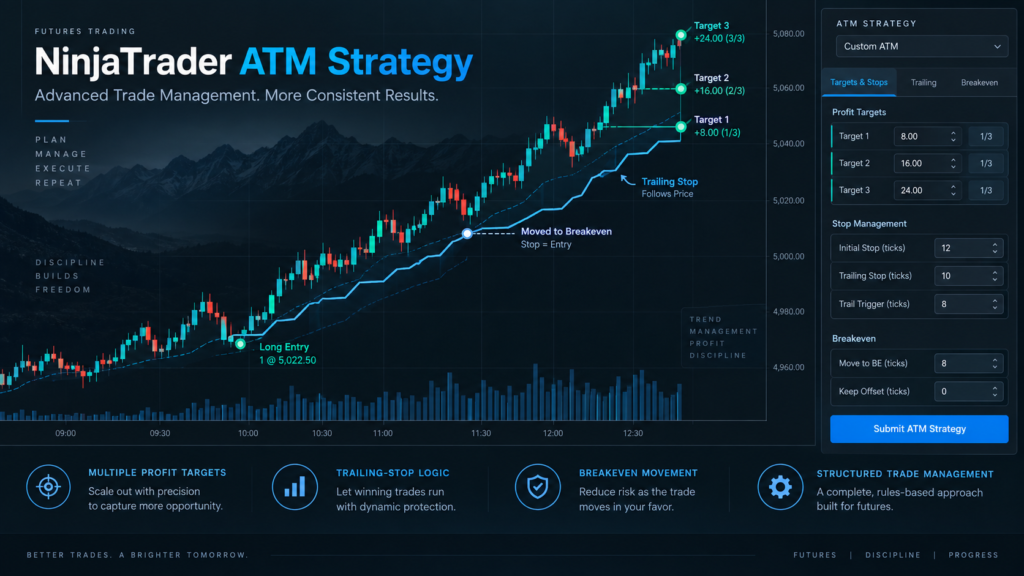
How a NinjaTrader Trailing Stop Works
Auto Trail belongs to an ATM Stop Strategy. It manages an exit after entry; it does not decide whether your entry has an advantage. The broader ATM framework supports semi-automated trade management and is separate from a fully automated NinjaScript trading system.
| Approach | Purpose | Main trade-off |
|---|---|---|
| Fixed stop | Keep an exit trigger at a chosen level unless modified. | Does not automatically follow favorable movement. |
| Auto Breakeven | Move toward the average entry price after a trigger. | Entry-price breakeven excludes trading costs. |
| Auto Trail | Adjust the stop using a trigger, distance, and update interval. | A tight distance can exit during ordinary pullbacks. |
A NinjaTrader Trailing Stop should express a tested exit rule. Moving the stop more frequently is not evidence that a strategy has improved.
NinjaTrader Trailing Stop Setup in Desktop
- Select a simulation account. Confirm the instrument, contract month, and quantity in Chart Trader or SuperDOM.
- Open the ATM Strategy selector. Choose Custom, or edit a saved template. Selecting None will not create a new ATM strategy.
- Define the initial bracket. Enter the initial Stop Loss and any Profit Target. Check the parameter type.
- Open Stop Strategy. Choose Custom for the target row whose stop you want to manage.
- Configure Auto Trail. Start with one step so you can observe each adjustment clearly.
- Save the configuration. Save the Stop Strategy and the full ATM template with descriptive names.
- Place a simulated entry. After a fill, inspect the actual stop order and its changes in the Orders tab.
The official ATM parameter guide explains the selector, and the template guide covers saving. For chart-based entry, see our NinjaTrader Chart Trader guide.
Save a separate NinjaTrader Trailing Stop practice template instead of overwriting a configuration you already understand.
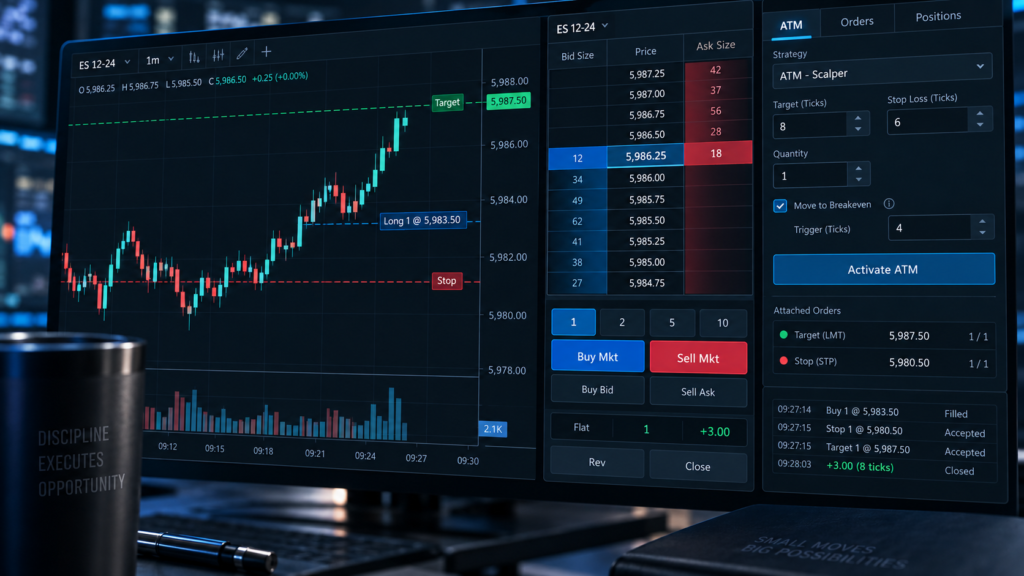
Profit Trigger, Stop Loss, and Frequency
Three inputs control the basic NinjaTrader Trailing Stop behavior. NinjaTrader documents these in its Auto Trail reference.
| Setting | Meaning | Practice value |
|---|---|---|
| Profit Trigger | Favorable movement needed to activate the step. | 12 ticks |
| Stop Loss | Trailing offset used when that step adjusts the stop. | 8 ticks |
| Frequency | Additional favorable movement between adjustments. | 4 ticks |
Frequency measures price movement, not seconds. Auto Trail supports up to three steps, each with its own inputs. A second or third step can change the offset and update interval after a larger favorable move. These example values teach the controls; they are not recommended trading settings.
NinjaTrader Trailing Stop Units: Ticks vs. Points
Read the units before entering numbers. The Stop Strategy documentation states that Currency and Price parameter types are not supported for these stop strategies; ticks are used instead. A dollar-denominated initial bracket does not mean that entering “8” in Auto Trail creates an eight-dollar distance.
NinjaTrader Trailing Stop Example: One MES Contract
This hypothetical example uses a long entry at 6,000.00, a 12-tick initial stop, and the 12/8/4 settings above. Assume no other stop rule or profit target interferes. For MES, one tick is 0.25 index points and $1.25 per contract, according to CME Group’s product overview.
| Market event | Stop level | Calculation |
|---|---|---|
| Entry at 6,000.00 | 5,997.00 | 6,000.00 − 12 × 0.25 |
| Price reaches 6,003.00 | 6,001.00 | Trigger reached; 6,003.00 − 8 × 0.25 |
| Price reaches 6,004.00 | 6,002.00 | Four more ticks; stop advances four ticks |
| Price reaches 6,005.00 | 6,003.00 | Another four-tick adjustment |
| Price retreats to 6,004.00 | 6,003.00 | The automated stop does not move backward |
The initial price distance represents $15 before fees and slippage, not a guaranteed maximum loss. An eventual exit exactly at 6,003.00 would produce $15 gross profit. A stop displayed at that price does not guarantee that fill.
For a short entry at 6,000.00, the directions reverse: a 12-tick favorable move reaches 5,997.00, and an eight-tick trailing offset places the buy stop at 5,999.00. The arithmetic is symmetrical; execution quality need not be.
Combining Auto Breakeven and Auto Trail
A NinjaTrader Trailing Stop can operate alongside Auto Breakeven. Breakeven uses the ATM position’s average entry price and an optional Plus offset. In a separate practice example, an eight-tick breakeven trigger with Plus set to one moves a long MES stop from below entry to 6,000.25 after price reaches 6,002.00.
The Auto Breakeven guide explains these inputs. An entry-plus-one-tick stop is only a price instruction: commissions and slippage can still leave a net loss.
When combining both functions, NinjaTrader’s ATM FAQ specifies an Auto Trail trigger higher than the Auto Breakeven trigger. Automated Stop Strategies do not move the stop backward.
Multiple Targets Need Separate Checks
A multi-target ATM setup needs the intended Stop Strategy on each relevant target row. Saving one row does not establish that every remaining contract has the same rule. NinjaTrader’s two-target tutorial demonstrates applying a saved Stop Strategy to both rows.
After a partial exit, compare remaining position size with remaining stop quantity. Review our OCO orders guide to understand linked stop and target orders.

Practice the Full Order Workflow
Explore entry orders, bracket settings, and simulated exits before evaluating a live account.
Explore NinjaTrader Trading Tools
Affiliate link. Simulated fills are hypothetical. Live accounts require approval and funding, and incur applicable exchange and trading fees.
NinjaTrader Trailing Stop: Connection and Execution Risks
Desktop ATM functions require NinjaTrader to remain connected. Do not assume the NinjaTrader Trailing Stop will keep adjusting after the platform closes or loses connectivity. An existing accepted stop and the software that modifies it are separate components; verify order location and connection behavior with your provider.
Also distinguish a simulation account from a Simulated Stop order. A Simulated Stop can be used for live trading but is held locally until its trigger conditions are satisfied. NinjaTrader’s Simulated Stop documentation explains the computer, connection, and market-data dependencies.
Execution depends on the resulting order. Market-based exits can slip; limit-based exits can remain unfilled. A rejected modification also requires checking the actual working order and position. Do not treat a chart line as confirmation that an exit was accepted. Our order execution guide covers fills, while the order rejection guide covers error diagnosis.

NinjaTrader Trailing Stop Not Moving: Six Checks
- Entry status: has the entry filled and created the expected ATM instance?
- Account and target: are you inspecting the correct account, contract, and stop row?
- Activation: has the favorable move reached the step’s Profit Trigger?
- Frequency: has price advanced enough for another adjustment?
- Existing stop: would the proposed change move a tighter stop backward?
- Connection and messages: is the platform connected, and did the order change receive an error?
For a NinjaTrader Trailing Stop problem, record the entry price, parameter values, timestamp, and actual order state. The official Orders tab guide explains account filtering and displayed quantities. If live exposure is uncertain, use the broker’s established support or emergency trade-desk process.
How to Test a NinjaTrader Trailing Stop
Separate a functional test from a strategy evaluation. First verify that the stop moves where the settings say it should. Then investigate whether those exits improve results after realistic costs.
- Write expected stop prices before replaying the example.
- Observe a trigger, a frequency increment, and a pullback.
- Repeat with a short position and with breakeven enabled.
- Check a partial exit if the template uses multiple targets.
- Compare the same entries with fixed stops and trailing stops.
- Include unfavorable sessions and data not used to choose settings.
For NinjaTrader Trailing Stop evaluation, record net results, drawdown, average exit slippage, and how often ordinary pullbacks cause early exits. Do not select a setting from one attractive chart. Simulation and backtests have different limitations, and neither demonstrates future live profitability.

Costs and Limits Before Live Trading
A NinjaTrader Trailing Stop does not eliminate brokerage costs. Budget for commissions on entry and exit, exchange, clearing, and NFA fees, plus applicable data or account charges. Optional software and hosting services can add costs. Verify current eligibility and features through NinjaTrader’s official pricing page.
Margin requirements remain separate from stop distance. A nearby stop does not make the broker’s minimum capital requirement disappear. Use our futures position size calculator to examine planned price risk, and check actual margin requirements independently.
Tighter stops can also create repeated exits and reentries, increasing transaction costs. Evaluate the whole trading sequence rather than the gross profit on one exit.
Who Should Use Auto Trail? Pros and Cons
A NinjaTrader Trailing Stop may suit a discretionary trader with explicit exit rules and time to monitor execution. It is less suitable for someone seeking unattended income, guaranteed loss limits, or a universal preset for every market.
| Potential advantage | Limitation to evaluate |
|---|---|
| Repeatable stop adjustments | Repeats a poor rule just as consistently as a useful one. |
| Fewer manual price changes | Connection and order errors still need attention. |
| Different management stages | Extra parameters create more opportunities to overfit. |
| Reusable templates | A saved configuration can be unsuitable for a different contract. |
For trend-following exits, test whether the offset leaves enough room for typical retracements. For short-duration trades, investigate whether spread and transaction costs dominate small gross gains. These are evaluation questions, not promises about which style will perform best.
Frequently Asked Questions
Is a NinjaTrader Trailing Stop the same as Auto Breakeven?
No. Breakeven moves the stop toward average entry, optionally with an offset. Auto Trail continues adjusting according to its trigger, distance, and frequency.
Why does my NinjaTrader Trailing Stop move in jumps?
Check Frequency. A multi-tick interval can produce stepwise adjustments instead of a change on every favorable tick.
Can a NinjaTrader Trailing Stop work on short trades?
Yes. Favorable movement is downward, and the buy stop trails above price. Verify the mirrored behavior in simulation.
Are there best settings for every futures market?
No universal settings are established here. Contract characteristics, volatility, entry logic, holding period, and trading costs all matter.
Does moving a stop to breakeven guarantee no loss?
No. Fees, slippage, gaps, and execution problems can produce a net loss even when the stop instruction is at entry.
Can I assume Desktop Auto Trail runs after I disconnect?
No. Desktop ATM functions require connectivity. Verify separately what happens to any already accepted orders with your connection provider.
Final Verdict: NinjaTrader Trailing Stop
NinjaTrader Trailing Stop functionality is useful when it translates a clear exit plan into repeatable order adjustments. Start with one step, verify the arithmetic, and evaluate results after costs. Add breakeven or multiple stages only when their purpose is clear. The quality of the trading rule, order handling, and monitoring determines whether the workflow is suitable.
For the wider platform comparison, read our NinjaTrader review.
Review the Platform Before Trading Live
Explore NinjaTrader’s tools, practice in simulation, and check current account terms.
Affiliate link. Free simulation is separate from live brokerage accounts. Live trading requires approval, funding, and applicable exchange and trading fees.