NinjaTrader Chart Trader 2026: Trade From Charts, Orders & ATM Guide
NinjaTrader Chart Trader is the built-in Desktop order-entry interface that lets futures traders place, modify, cancel, and monitor trades directly from a chart. In 2026, the tool remains one of NinjaTrader’s most practical discretionary trading features because it keeps price action, indicators, working orders, open positions, and profit-and-loss information in the same visual workspace. Traders can use standard order types, Advanced Trade Management (ATM) strategies, OCO brackets, and visual order modification without constantly switching between a chart and a separate order-entry window.
Quick Answer: NinjaTrader Chart Trader lets you trade directly from a NinjaTrader Desktop chart. Enable it from the Chart Trader icon in the chart toolbar, choose Chart Trader or Chart Trader Hidden, select your account, quantity, Time in Force and ATM template, then submit orders from the panel or right-click menu. Working orders and positions appear visually on the chart so they can be modified or canceled in context with current price action.
Affiliate Disclosure: TradeboticsAI may receive compensation if you register or complete an eligible action through links on this page, at no additional cost to you. This does not affect our editorial analysis.
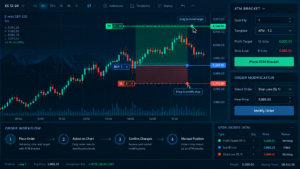
What Is NinjaTrader Chart Trader?
NinjaTrader Chart Trader is an order-entry and trade-management panel integrated into NinjaTrader Desktop charts. When enabled, it allows you to submit, modify, cancel, and close orders or positions while keeping the market chart visible.
The main advantage is context. Instead of entering an order from a separate ticket and then returning to the chart, the trader can see the intended entry, stop, target, and open position directly against current price action and technical indicators.
NinjaTrader’s documentation describes Chart Trader as having two primary components: the control panel used for order and position management, and the chart itself, where working orders and open positions are displayed visually.
For the official platform documentation, see the NinjaTrader Chart Trader Help Guide.
How to Enable NinjaTrader Chart Trader
NinjaTrader Chart Trader can be enabled from an open chart. NinjaTrader provides a Chart Trader icon in the chart toolbar. Selecting it gives access to the chart-trading modes.
- Open NinjaTrader Desktop.
- Create or open the chart you want to trade.
- Click the Chart Trader icon in the chart toolbar.
- Select Chart Trader to display the right-side order panel.
- Select Chart Trader Hidden if you want chart-based order entry without displaying the full panel.
- Confirm the correct account and futures contract before placing an order.
When Chart Trader is turned off, chart-based order submission is disabled. Orders entered through other interfaces can still exist in the account, so always confirm the Orders and Positions tabs before assuming there is no live exposure.

NinjaTrader Chart Trader Interface Explained
The NinjaTrader Chart Trader panel appears on the right side of the chart and groups the most important trade controls into one compact area.
Depending on the selected account and connection, commonly available controls include:
- instrument selection;
- account selection;
- order quantity;
- Time in Force;
- ATM Strategy selection;
- Buy Market and Sell Market controls;
- bid and ask order controls;
- position information;
- profit-and-loss display;
- close and reverse controls.
This layout makes Chart Trader useful for discretionary traders who want to combine technical analysis and execution without switching windows. The exact controls can vary with account type, connection, platform settings, and selected trading mode.
How to Place Orders With NinjaTrader Chart Trader
NinjaTrader supports several order-entry methods from the chart. The current NinjaTrader educational material highlights market, limit, stop-loss, trailing-stop, Market-if-Touched, OCO, and ATM workflows.
A simple workflow is:
- Select the correct futures contract and expiration month.
- Select the intended live or simulation account.
- Set order quantity.
- Choose the appropriate Time in Force.
- Select an ATM template if one is required.
- Use the Chart Trader panel or right-click the chart near the intended price.
- Choose the appropriate order type.
- Confirm the order state after submission.
A Limit order can be used when price control matters more than immediate execution. Stop and Stop Limit orders can be placed at trigger levels. Market orders prioritize immediate execution but can experience slippage.
See our NinjaTrader Order Types 2026 guide for Market, Limit, Stop Market, Stop Limit, MIT, and OCO behavior.
How to Modify and Cancel Orders on the Chart
One of the strongest features of NinjaTrader Chart Trader is visual order modification. Working orders are displayed on the chart as order markers and lines, allowing the trader to see their exact relationship to market price.
NinjaTrader supports direct modification from the chart. A trader can select a working order and move it to a new valid price level. This makes it possible to adjust entries, profit targets, or protective stops without rebuilding the entire order.
Orders can also be canceled directly from the chart. Before canceling an order that belongs to an OCO group, remember that linked orders can also be affected by the OCO relationship.
After any modification, confirm that the order returns to the expected Working state and that quantity, price, and account remain correct. Fast manual changes should never replace verification.

NinjaTrader Chart Trader Hidden Mode
Chart Trader includes a Hidden mode for traders who want to keep more chart space while preserving chart-based trading functionality.
In the normal Chart Trader mode, the quick-click trading panel is visible on the right side of the chart. In Hidden mode, the panel is not displayed, but chart trading remains enabled and order commands can still be accessed from the chart’s right-click menu.
Hidden mode can be useful on smaller monitors, multi-chart layouts, or workspaces where the trader wants maximum visual space for indicators and price structure.
The tradeoff is that some controls are less continuously visible. If you use Hidden mode, pay extra attention to account, quantity, ATM template, and contract selection before submitting an order.
Using ATM Strategies With NinjaTrader Chart Trader
Chart Trader integrates with Advanced Trade Management strategies. ATM templates can automatically submit predefined stop-loss and profit-target orders after an entry is filled.
This can reduce repetitive manual work and help standardize trade management. For example, an ATM template can define:
- initial stop-loss distance;
- one or more profit targets;
- multiple target quantities;
- auto-breakeven logic;
- auto-trailing logic where configured.
Once the ATM orders are visible on the chart, they can be monitored in context with price movement. NinjaTrader also allows ATM stop and target orders to be modified from Chart Trader.
Automation does not eliminate execution risk. A Stop Market order can slip, a Stop Limit can remain unfilled, and incorrect ATM quantities can create unintended exposure. Test ATM templates in simulation before relying on them with real money.
OCO Brackets and Protective Orders
Profit targets and stop losses generated by ATM strategies commonly use One Cancels Other logic. This means the target and protective stop are linked so that execution of one cancels the other.
Chart Trader makes this relationship easy to visualize because both exit orders can appear directly on the chart. A long position may show a Limit target above the market and a Stop order below it.
If the target fills, the stop should be canceled through the OCO relationship. If the stop fills first, the target is canceled. Always confirm the actual order state after execution rather than assuming the relationship completed correctly.
For manual and ATM-based OCO workflows, see our NinjaTrader OCO Orders 2026 guide.
Attach Orders to Indicators
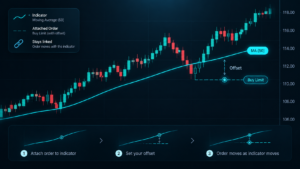
An advanced Chart Trader feature is Attach to Indicator. NinjaTrader allows a resting order to be linked to an indicator plot so that the order price automatically moves as the selected indicator value changes.
The feature can be used for entries, profit targets, and stop-loss orders. NinjaTrader allows the trader to select the indicator plot, apply an offset in ticks, and optionally restrict modifications so the order only moves toward the last traded price rather than farther away.
A simplified setup is:
- Add the desired indicator to the same chart panel.
- Place a resting order.
- Select the order label.
- Use the Attach to Indicator workflow.
- Select the correct indicator plot.
- Set any required tick offset.
- Confirm that the resulting order price is valid.
This feature requires care. Attaching an order to the wrong indicator plot or to a value on the wrong side of the market can produce an immediate fill or rejected order.
How Orders and Positions Are Displayed
NinjaTrader visually displays resting orders and positions within the chart. This is a major reason traders choose Chart Trader instead of a separate ticket.
Working Limit, Stop Market, and Stop Limit orders are drawn at their price levels. Open positions can also be displayed so the trader can compare the entry price, current market, unrealized P&L, protective stop, and target without leaving the chart.
NinjaTrader’s current help documentation explains that Market orders are not displayed as resting chart orders because they seek immediate execution. Completed executions can instead be reviewed through the platform’s order and execution records.
For live trading, visual order markers should be treated as a convenient representation, not the only source of truth. The Control Center Orders and Positions tabs remain important when confirming actual live exposure.
NinjaTrader Chart Trader vs SuperDOM
NinjaTrader Chart Trader and SuperDOM can both place and manage futures orders, but they emphasize different workflows.
| Feature | Chart Trader | SuperDOM |
|---|---|---|
| Primary View | Price chart with orders overlaid | Price ladder and market depth |
| Technical Context | Strong visual integration with indicators and drawings | Focused more heavily on ladder execution |
| Order Adjustment | Visual movement on chart | Modification directly on price ladder |
| Best Fit | Chart-focused discretionary traders | DOM and order-book focused execution |
NinjaTrader notes that chart trading can provide better visual alignment between technical analysis and orders while reducing the distraction of a fast-moving DOM. Traders who depend heavily on depth and ladder behavior may still prefer SuperDOM.
See our NinjaTrader SuperDOM Review 2026 for the dedicated ladder-trading workflow.
NinjaTrader Chart Trader Risks and Common Mistakes
The speed and convenience of Chart Trader can also make order-entry mistakes faster. The most important risks are operational rather than cosmetic.
Wrong Account
A trader can accidentally submit to a live account when intending to use simulation. Confirm the account before every order.
Wrong Contract Month
Futures expire. Verify the active contract before placing or modifying working orders.
Wrong Quantity
A single extra contract can materially change risk. Check quantity before submission and after partial fills.
Dragging an Order to the Wrong Price
Visual modification is fast. Always confirm the new order price before considering the adjustment complete.
Assuming OCO or ATM Protection Exists
Verify that stop and target orders are actually Working. Never assume a protective order exists simply because an ATM template was selected.
Attach to Indicator Errors
An incorrect indicator, plot, or offset can move a working order to an unintended price.
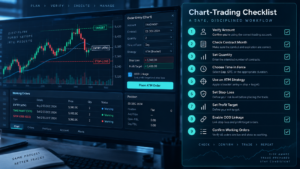
NinjaTrader Chart Trader Checklist
- confirm the correct futures contract and expiry;
- confirm live versus simulation account;
- check quantity before submission;
- select the correct Time in Force;
- verify the intended ATM template;
- confirm order type and price;
- check that working orders appear at the intended chart levels;
- verify stop-loss and profit-target quantities;
- confirm OCO relationships where applicable;
- review order state after every modification;
- check actual position size after partial or full fills;
- review all working orders before closing the platform.
For beginners, practice the complete NinjaTrader Chart Trader workflow in simulation first. See our NinjaTrader Demo Account 2026 guide before switching to live execution.
NinjaTrader Chart Trader: Pros and Cons
Pros
- Place and manage orders directly from the chart.
- See working orders and positions in technical-analysis context.
- Supports ATM and OCO trade-management workflows.
- Visual order modification can be faster than rebuilding orders.
- Hidden mode preserves chart space.
- Attach to Indicator can partially automate order movement.
Cons
- Fast chart trading can magnify user-entry errors.
- Dragging an order can move it to an unintended level.
- Attach to Indicator requires careful configuration.
- Visual markers should not replace confirmation in Orders and Positions.
- Traders focused on depth may prefer SuperDOM.
- ATM and OCO automation still require monitoring.
NinjaTrader Chart Trader FAQ
What is NinjaTrader Chart Trader?
It is NinjaTrader Desktop’s chart-integrated order-entry tool. It lets traders submit, modify, cancel, and monitor futures orders and positions directly from a chart.
How do I enable NinjaTrader Chart Trader?
Open a chart and select the Chart Trader icon in the chart toolbar. Choose Chart Trader for the visible side panel or Chart Trader Hidden for chart trading without the full panel.
Can I place Limit and Stop orders from a NinjaTrader chart?
Yes. NinjaTrader supports visual submission and management of Limit, Stop Market, Stop Limit, and other supported order workflows directly from charts.
Can Chart Trader use ATM strategies?
Yes. ATM strategies can be selected from Chart Trader so predefined stops, targets, and supported stop-management logic can be applied after an entry.
Does Chart Trader support OCO orders?
Yes. OCO relationships can be used for linked orders, and ATM-generated stop-loss and profit-target orders commonly use OCO logic.
What is Chart Trader Hidden?
Hidden mode keeps chart trading enabled while hiding the full right-side control panel. Orders can still be submitted through supported chart menus.
Can NinjaTrader Chart Trader attach an order to an indicator?
Yes. A resting order can be attached to an indicator plot so the order automatically follows changes in that indicator, subject to the configured offset and movement rules.
Is Chart Trader better than SuperDOM?
Neither is universally better. Chart Trader favors visual chart-based execution and indicator context, while SuperDOM emphasizes ladder-based execution and market depth.
Final Verdict: NinjaTrader Chart Trader in 2026
NinjaTrader Chart Trader is one of NinjaTrader Desktop’s strongest discretionary trading tools because it combines market analysis and execution in the same visual workspace. Traders can see the chart, indicators, resting orders, open position, stop, target, and P&L while managing the trade.
The strongest features are visual order placement, direct modification, ATM integration, OCO brackets, Hidden mode, and Attach to Indicator. These features can reduce unnecessary window switching and make a structured trading plan easier to execute.
The main limitation is that convenience can create overconfidence. A chart-based interface does not prevent wrong-account orders, excessive quantity, slippage, rejected orders, incorrect contract months, or poorly configured ATM logic.
Practice every workflow in simulation, verify actual live order states after submission, and use NinjaTrader Chart Trader as an execution interface—not as a substitute for position sizing and risk management.
Affiliate Disclosure: TradeboticsAI may earn compensation when eligible users take an action through certain links on this page. Our content remains editorially independent and is provided for educational and comparison purposes.
Risk Disclosure: Futures trading involves substantial risk of loss and is not suitable for every investor. Chart-based order entry does not guarantee execution, fill price, stop protection, or profitability. Slippage, partial fills, rejected orders, connection issues, incorrect settings, and rapid market movement can affect results. Practice in simulation and verify all live orders and positions before relying on Chart Trader with real capital.