NinjaTrader Chart Trader Review 2026: Best Chart Trading Tool?

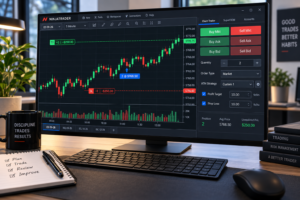
NinjaTrader Chart Trader Review 2026 examines NinjaTrader Desktop’s built-in chart trading interface for active futures traders. Chart Trader lets users submit, modify and cancel orders directly from a chart while keeping price action, indicators, open orders, positions and unrealized P&L in the same visual workspace. For discretionary traders who make decisions from charts, that can reduce the need to switch constantly between analysis and a separate order-entry window.
Quick Answer: Is NinjaTrader Chart Trader Worth Using?
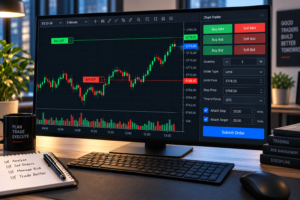
For chart-focused futures traders, our NinjaTrader Chart Trader Review is positive. The tool supports market, limit, stop and other order workflows, integrates with Advanced Trade Management (ATM) templates, allows visual order modification and can attach resting orders to indicator plots. Its strongest advantage is context: traders can manage execution while seeing the technical chart that informed the trade. It is not a trading signal service and it does not reduce the financial risk of futures trading.
What Is NinjaTrader Chart Trader?
NinjaTrader Chart Trader Review analysis starts with the tool’s core purpose: Chart Trader is an order-entry and trade-management panel built into NinjaTrader Desktop charts. When enabled, it appears alongside the chart and allows orders and positions to be handled without leaving the chart window.
NinjaTrader’s official help guide states that Chart Trader can be enabled from a chart and used to submit, modify and cancel orders directly from that chart. The interface can display resting orders and open positions visually against current market movement, which makes it easier to understand where an entry, protective stop or profit target sits relative to price.
There is also a hidden mode. Chart Trader Hidden keeps chart trading enabled without showing the full right-side panel, allowing users to work from the chart’s context menu when they want more screen space.

For technical documentation, see the
official NinjaTrader Chart Trader guide
.
How NinjaTrader Chart Trader Works
The basic workflow is straightforward. A trader opens a NinjaTrader Desktop chart, enables Chart Trader, chooses the account, instrument, quantity and time-in-force, and then selects the desired order action. If an ATM template is needed, it can be selected from the ATM Strategy control before an entry order is submitted.
One advantage identified in this NinjaTrader Chart Trader Review is that analysis and execution remain visually connected. Instead of reading support, resistance, indicators or market structure on one screen and placing orders elsewhere, the trader can submit and manage orders in the same chart environment.
That structure can be especially useful for discretionary intraday traders whose setups depend heavily on price structure. In our NinjaTrader Chart Trader Review, this is a usability advantage rather than a claim of better trading performance. Speed and convenience do not replace order knowledge. Users still need to understand the difference between market, limit, stop-market, stop-limit and other order types before trading live.
NinjaTrader Chart Trader Order Entry and Order Types
Chart Trader supports several methods for submitting orders. The right-click chart menu offers context-sensitive order choices based on where the mouse is positioned relative to the market, while the Chart Trader panel includes quick buttons for common actions such as market and bid/ask limit orders.
According to NinjaTrader’s current help documentation, the panel can be configured with account, order quantity, time-in-force and ATM Strategy settings before submission. The chart can display resting Limit, Stop-Market, Stop-Limit, Market-if-Touched, Stop Loss and Profit Target orders. Market orders are immediate orders rather than resting chart lines.

The NinjaTrader Chart Trader Review takeaway is not that one order type is inherently better than another. The advantage is workflow efficiency: the user can choose an appropriate order type while seeing its intended price directly on the chart.
NinjaTrader Chart Trader Review: Visual Order and Position Management
Once an order is working, Chart Trader draws it on the chart as a price-linked line and label. Open positions can also be displayed with information such as position size, average entry area and unrealized P&L. NinjaTrader allows P&L display formats including currency, points, ticks, percent and other supported units.
A particularly useful feature in this NinjaTrader Chart Trader Review is visual modification. NinjaTrader documents a click-then-click workflow: select the order label, move the ghost order line to a new level, and click again to submit the price modification. Order size can also be edited from the chart, and resting orders can be cancelled from their visual markers.
That visual interaction can make stop and target management more intuitive for traders who think in chart levels. It also increases the importance of precision. Moving a line to the wrong price changes a real working order when connected to a live account.
See NinjaTrader’s
official order modification documentation
for the current workflow.
NinjaTrader Chart Trader With ATM Strategy Integration
ATM integration is one of the strongest reasons to use Chart Trader. Before submitting an order, a trader can choose no ATM strategy, create a custom configuration, select a saved ATM template, or work with an already active ATM instance depending on the current workflow.
When a predefined ATM template is selected and the entry fills, the configured stop-loss and profit-target logic can be initiated. This gives discretionary traders a way to combine chart-based entries with predefined trade management.

Our NinjaTrader Chart Trader Review considers this combination more valuable than simple one-click order entry because it can reduce repetitive post-entry setup. It does not make the underlying strategy profitable; it only executes the management rules chosen by the trader.
For a deeper explanation of ATM templates, breakeven and trailing-stop logic, read our
NinjaTrader ATM Strategy Review 2026
.
NinjaTrader Chart Trader Review: Attach Orders to Indicators
One advanced feature that deserves more attention is Attach to Indicator. NinjaTrader’s documentation states that Chart Trader can attach a resting order to an indicator plot, causing the order to update as that indicator value changes. The feature can be used with entries as well as resting exits such as stop-loss and profit-target orders.
Users can configure an offset and can choose an option that restricts modification toward the last traded price only. This creates a form of rule-based order movement without requiring the trader to drag the order manually after every indicator update.
In the context of this NinjaTrader Chart Trader Review, Attach to Indicator is powerful but should be treated carefully. If an indicator changes rapidly or the attachment rules are misunderstood, the working order can also change. Simulation and visual verification are appropriate before applying this workflow to live capital.
Review the
official Attach to Indicator documentation
for current operating details.
NinjaTrader Chart Trader vs SuperDOM
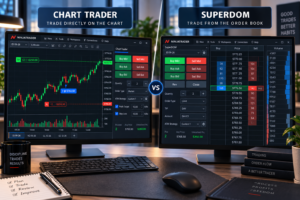
The choice between Chart Trader and SuperDOM is primarily a workflow decision. Chart Trader centers execution around the technical chart; SuperDOM centers execution around a price ladder. Both can be useful, and both support active futures order management.
| Feature | Chart Trader | SuperDOM |
|---|---|---|
| Primary view | Price chart | Price ladder / DOM |
| Best visual context | Price action, indicators and chart levels | Price-level order-entry workflow |
| Order placement | Chart menu and quick controls | Ladder-based controls |
| ATM integration | Yes | Yes |
| Visual resting orders | Displayed against chart price action | Displayed on the ladder |
| Typical fit | Chart-driven discretionary trader | Trader who prefers ladder-based execution |

The NinjaTrader Chart Trader Review recommendation is simple: traders who make decisions from chart structure will usually find Chart Trader more natural, while users who prefer a ladder may favor SuperDOM. Some active traders use both depending on the task.
For more detail, read our
NinjaTrader SuperDOM Review 2026
.
Traders interested in deeper order-flow analysis can also see our
NinjaTrader Order Flow+ Review 2026
.
Practical NinjaTrader Chart Trader Workflow Example
A simple educational workflow could look like this:
- Open a futures chart in NinjaTrader Desktop.
- Enable Chart Trader from the chart toolbar.
- Confirm the correct account and contract.
- Set the intended quantity and time-in-force.
- Select an ATM template if predefined stops and targets are required.
- Use the chart menu or quick controls to submit the chosen order type.
- Confirm that working orders appear at the intended prices.
- After a fill, monitor the position, stop and targets visually.
- Modify or cancel orders only after confirming the new price and quantity.

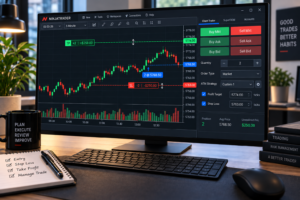
This NinjaTrader Chart Trader Review example illustrates platform mechanics only. It is not a recommendation to use a specific entry, stop, target, contract or position size.
NinjaTrader Chart Trader Review: Limitations and Risks
This NinjaTrader Chart Trader Review also highlights the operational downside of convenience: users can act too quickly. A wrong account, quantity, instrument or order price can create an unintended live position. Traders should verify each field before submission and understand how OCO and ATM-linked orders behave.
The interface is also designed around NinjaTrader Desktop. Traders who primarily want a mobile-first or browser-only workflow should evaluate NinjaTrader’s other platform interfaces rather than assuming every Desktop Chart Trader function is reproduced identically elsewhere.
Another limitation identified in this NinjaTrader Chart Trader Review is that visual order management does not provide a trading edge by itself. Chart Trader can make execution more organized, but it cannot determine whether the underlying market thesis is valid.
Finally, simulated trading is hypothetical. Live futures trading can differ because of liquidity, fills, slippage, fees and the psychological impact of risking real money.
NinjaTrader Chart Trader Review: Pricing and Platform Access in 2026
Chart Trader is part of NinjaTrader Desktop. NinjaTrader’s current brokerage pricing page lists Free, Monthly and Lifetime plans, and states that all plans include access to NinjaTrader Desktop, Web and Mobile platforms along with advanced tools and simulated trading. Brokerage pricing and trading commissions are separate from the question of whether Chart Trader itself is useful.
| Plan | Plan Cost | Micro & e-Nano Commission | Standard Futures Commission |
|---|---|---|---|
| Free | $0 monthly plan fee | $0.39 per side | $1.29 per side |
| Monthly | $99/month | $0.29 per side | $0.99 per side |
| Lifetime | $1,499 one-time | $0.09 per side | $0.59 per side |
For accuracy, this NinjaTrader Chart Trader Review uses NinjaTrader’s current published brokerage pricing. Exchange, clearing and NFA fees apply in addition to the listed commissions. Pricing and terms can change, so verify the latest figures on the
official NinjaTrader pricing page
.
From a value perspective, the NinjaTrader Chart Trader Review conclusion is that traders should choose a brokerage plan based on their overall futures activity, commission economics and platform requirements rather than paying for a plan solely because they want chart-based order entry.
NinjaTrader Chart Trader Review: Pros and Cons
Pros
- Place and manage orders directly from the chart.
- Visual relationship between price action and working orders.
- Supports common futures order workflows.
- Integrates with ATM Strategy templates.
- Orders and positions can be modified visually.
- Supports Attach to Indicator for selected resting orders.
- Hidden mode can preserve chart space.
- Useful for discretionary chart-driven execution.
Cons
- Desktop-focused interface.
- Requires knowledge of futures order types.
- Fast visual execution can magnify user-input mistakes.
- Not a trading signal or strategy-generation system.
- Advanced ATM, OCO and indicator-linked orders require practice.
- Simulation does not fully reproduce live execution.
NinjaTrader Chart Trader Review: Who Is It Best For?
Based on this NinjaTrader Chart Trader Review, the strongest fit is an active futures trader who bases decisions on chart structure and wants the order-management layer visible alongside that analysis.
Good Fit For
- Futures day traders.
- Chart-focused discretionary traders.
- Micro futures traders.
- Users who rely on technical indicators or price levels.
- Traders who use ATM stop and target templates.
- Users who prefer visual order modification.
Less Suitable For
- Long-term investors with little need for active order management.
- Users who prefer ladder-only execution.
- Traders unfamiliar with futures leverage and order types.
- Anyone expecting the software to generate guaranteed profitable trades.
Explore NinjaTrader Chart Trading
Use simulation to learn Chart Trader’s order-entry, ATM and modification workflows before applying them to live futures positions.
Affiliate disclosure: TradeboticsAI may receive compensation if you complete a qualifying action through this link, at no additional cost to you.
NinjaTrader Chart Trader Review FAQ
What is NinjaTrader Chart Trader?
Chart Trader is a NinjaTrader Desktop order-entry interface that lets traders submit, modify, cancel and monitor orders directly from a chart.
Can you place futures orders directly from a NinjaTrader chart?
Yes. Chart Trader provides chart-based order submission through quick controls and context-sensitive chart menus.
Does NinjaTrader Chart Trader work with ATM Strategies?
Yes. Traders can select custom or saved ATM Strategy templates before submitting an entry, allowing predefined stop and target management to begin after the entry fills according to the selected ATM configuration.
Can Chart Trader modify working orders visually?
Yes. NinjaTrader documents a click-then-click method for moving working orders to new prices, and order quantity can also be modified from the chart interface.
Can Chart Trader attach an order to an indicator?
Yes. A resting order can be attached to a supported indicator plot so the order price updates as the indicator value changes, subject to the selected attachment settings.
Does Chart Trader replace SuperDOM?
No. They are different order-entry workflows. Chart Trader emphasizes chart context, while SuperDOM emphasizes ladder-based execution. The better choice depends on how the trader prefers to view and manage orders.
Can I use NinjaTrader Chart Trader in simulation?
Yes. NinjaTrader provides simulated trading that can be used to practice platform workflows. Simulation is hypothetical and should not be treated as evidence of future live results.
Is NinjaTrader Chart Trader good for beginners?
It can be learned by beginners, but users should first understand futures contracts, leverage, order types, stop orders and position sizing. Practicing in simulation is preferable before using live capital.
Final Verdict: NinjaTrader Chart Trader Review 2026
The final NinjaTrader Chart Trader Review verdict is positive for traders who want chart analysis and order execution in the same NinjaTrader Desktop workspace. The feature’s biggest strengths are visual context, direct order management, ATM integration and flexible modification of working orders.
Chart Trader is particularly compelling for discretionary futures traders who identify setups from chart structure and want to place or adjust orders without moving to a separate execution window. The Attach to Indicator feature adds another layer of rule-based flexibility for users who understand its behavior.
The tool should still be treated as execution infrastructure, not as a source of trading profitability. Futures remain leveraged and high risk, and a faster interface can execute a bad decision just as efficiently as a good one.
For the right workflow, this NinjaTrader Chart Trader Review supports Chart Trader as one of NinjaTrader Desktop’s most practical tools for active chart-based futures execution.
Get Started With NinjaTrader
Risk, Simulation and Affiliate Disclosure
Risk Disclosure: Futures trading involves substantial risk and is not suitable for every investor. You can lose all or more than your initial investment. Only risk capital you can afford to lose. Nothing on this page constitutes financial or investment advice, and no trading result is guaranteed.
Simulation Disclosure: Simulated trading is hypothetical and does not fully reproduce live trading conditions. Actual results can differ because of liquidity, execution, slippage, fees and the psychological effects of risking real capital.
Affiliate Disclosure: Some links on this page are affiliate links. TradeboticsAI may receive compensation when a qualifying action is completed through those links. This does not increase the user’s cost.