NinjaTrader Contract Rollover 2026: Dates, Expiration & How to Roll Futures Guide
NinjaTrader Contract Rollover is the process of moving from an expiring futures contract to a later contract month so you can continue trading the same underlying market without carrying the old contract into expiration or delivery risk. In 2026, NinjaTrader supports both batch and manual rollover workflows. A futures instrument becomes eligible for batch rollover when the current date reaches the rollover date defined for the next contract month, and the platform can update eligible instruments across open workspaces.
Quick Answer: NinjaTrader Contract Rollover means switching from the current futures expiry to the next active contract month. In NinjaTrader Desktop, you can use Tools > Database Management to batch-roll eligible instruments, or manually enter the next expiry in an instrument selector. Rolling the workspace does not automatically roll an open brokerage position or a NinjaScript strategy, so traders must manage actual positions and automated strategies separately.
Affiliate Disclosure: TradeboticsAI may receive compensation if you register or complete an eligible action through links on this page, at no additional cost to you. This does not affect our editorial analysis.

What Is NinjaTrader Contract Rollover?
NinjaTrader Contract Rollover is the platform workflow used to update a futures instrument from one expiry month to the next. Futures contracts do not trade forever. Each contract has a defined expiration cycle, and traders who want to maintain exposure beyond the current contract must either close the position or roll that exposure into a later contract month.
The NinjaTrader Contract Rollover process has two distinct parts that should not be confused. First, the trading platform and charts may need to switch from the old contract month to the new one. Second, an actual live brokerage position must be closed in the expiring contract and reopened in the later contract if the trader wants to maintain market exposure.
Updating a chart symbol therefore is not the same as rolling a live position. The first is a workspace/data operation; the second is a real trade with commissions, fills, slippage, and market risk.
For current platform instructions, review NinjaTrader’s official Rolling Over Futures Contracts help guide.
Why Futures Traders Roll Contracts
The main reason for NinjaTrader Contract Rollover is that futures contracts expire. A trader who wants to continue trading the same underlying market usually moves to a later expiry rather than remaining in a contract that is approaching expiration.
There is also a liquidity reason. NinjaTrader explains that traders may roll before expiration because trading volume often migrates from the expiring front month to the next active contract. Once the new contract attracts more volume, spreads and execution can become more favorable there than in the old month.
Common reasons to roll include:
- avoiding expiration or settlement;
- avoiding physical-delivery exposure in deliverable commodities;
- following the contract month with stronger volume and liquidity;
- continuing a swing or position trade into a later expiry;
- keeping charts and workspaces aligned with the active market.
A NinjaTrader Contract Rollover should therefore be planned around the specific futures product rather than performed automatically on the same calendar day for every market.
NinjaTrader Contract Rollover Date vs Expiration Date
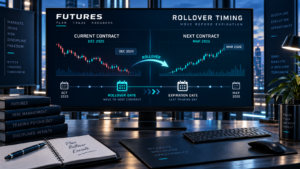
A rollover date and an expiration date are not the same thing. The expiration date is when the futures contract reaches the end of its trading or settlement cycle. The rollover date is an earlier operational point at which traders or platforms begin transitioning toward the next contract month.
NinjaTrader’s batch rollover tool determines eligibility from the rollover date defined for the next contract month. The help guide states that an instrument becomes eligible when the current date is greater than or equal to that defined rollover date.
For popular E-mini and Micro E-mini equity index futures, expirations occur in the quarterly March, June, September, and December cycle. Other markets can expire monthly or follow different schedules. The active contract can also change before expiration as volume moves.
That is why NinjaTrader Contract Rollover should be based on both the contract calendar and real market activity. Checking volume can help confirm whether liquidity has already migrated to the next month.
How to Batch Roll Futures in NinjaTrader
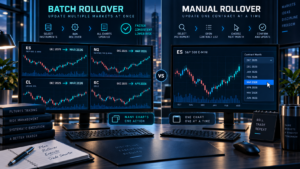
NinjaTrader Desktop includes a batch rollover workflow that can update eligible futures instruments across instrument lists and windows in open workspaces.
- Open the NinjaTrader Control Center.
- Select Tools.
- Open Database Management.
- Find the Rollover futures instruments section.
- Review the instruments shown as eligible for rollover.
- Confirm the contracts checked in the Update column.
- Select Rollover.
- Review the New Expiry values and save your workspace if you want the changes preserved.
According to NinjaTrader, selecting Rollover updates checked instruments to the New Expiry across instrument lists and windows using those instruments in open workspaces.
This makes batch NinjaTrader Contract Rollover useful when several charts, DOMs, Market Analyzer windows, or other tools use the same expiring contracts. Instead of manually changing each window one by one, the database function can update eligible instruments together.
How to Manually Roll a Futures Contract
Manual rollover is useful when you do not want every open window or workspace to move at the same time. NinjaTrader allows a trader to change an individual instrument selector to the next expiry.
For example, an ES chart using one quarterly expiry can be changed to the next quarterly ES contract by entering the new contract month in that window’s instrument selector.
Manual NinjaTrader Contract Rollover can make sense when:
- you want to compare old and new contract months side by side;
- liquidity has shifted in one market but not another;
- you still need historical or execution context from the old contract;
- you want to update charts gradually rather than all at once;
- an automated strategy still requires manual review before changing expiry.
Do not remove the old contract from every workspace until you are certain you no longer need it for chart comparison, order review, or trade reconciliation.
Does NinjaTrader Contract Rollover Move an Open Position?
No. Updating the expiry used by a chart or workspace is not the same as rolling a live futures position.
If you are long or short an expiring contract and want to remain exposed to the same market, you generally need to close or offset the position in the old contract and establish the desired position in the new contract month. Those are actual market transactions.
This distinction is critical because a platform rollover can make the new contract visible while the brokerage account still holds the old expiry. Always verify the exact symbol and month in your Positions tab before assuming your live exposure has changed.
When managing a live NinjaTrader Contract Rollover, also review current margin, buying power, working orders, and stop/target orders. Orders attached to the old expiry do not automatically become orders in the new contract merely because a chart has changed.
For account exposure controls, see our NinjaTrader Position Limits 2026 guide.
NinjaScript Strategies and Contract Rollover
NinjaTrader’s help guide explicitly states that NinjaScript strategies are not rolled forward by the batch rollover function and must be manually rolled over.
That means algorithmic traders should not assume the strategy will automatically move to the new contract month when charts and other windows are updated. Before changing a live automated system, verify:
- the strategy’s configured instrument and expiry;
- whether the strategy is currently enabled;
- open live positions;
- working stop and target orders;
- historical-data continuity;
- whether indicator calculations change after the contract switch.
For an automated strategy, careless NinjaTrader Contract Rollover can create duplicated exposure or leave an old position unmanaged. Disable or manage automation carefully before changing live contract months.
Charts, Drawing Objects and Merge Policy
NinjaTrader can preserve drawing objects when using batch or manual rollover, but historical-data merge settings affect how charts look across contract months.
The help guide explains that drawing objects remain at the same price level where they were originally placed. If MergeBackAdjusted is used, historical bars can be adjusted during rollover, which can visually move price bars away from an existing drawing. With MergeNonBackAdjusted, previous contract prices remain unchanged, helping keep drawings visually aligned with their original bars.
This matters for traders who use manually drawn support, resistance, volume-profile references, or other price levels. After NinjaTrader Contract Rollover, inspect important drawings before relying on them for live decisions.
Strategies that create drawing objects can redraw them based on the post-rollover chart data.

Volume, Liquidity and the Front Month
The front month is generally the nearest actively traded contract to expiration. As the rollover period approaches, traders should watch whether volume and open interest are migrating into the next month.
NinjaTrader notes that traders may roll specifically to follow volume and ensure sufficient liquidity. A contract can still exist and trade while no longer being the preferred month for short-term execution.
Lower liquidity can mean wider bid-ask spreads, thinner order books, and potentially greater slippage. For this reason, experienced traders often monitor both the calendar rollover date and real-time market participation.
Do not base NinjaTrader Contract Rollover on an old calendar saved months earlier without checking the active contract. Exchange schedules, holidays, and product-specific conventions can differ.
Cash-Settled vs Physically Delivered Futures
Expiration risk is especially important for physically delivered futures. NinjaTrader explains that futures contracts can be cash settled or physically delivered.
Cash-settled products such as many equity-index futures settle financially. Physically delivered commodity contracts can involve delivery obligations if held too close to delivery-related deadlines. Retail futures traders generally avoid this by closing or rolling positions before the relevant expiration or First Notice Date.
NinjaTrader’s current educational guidance emphasizes that a trader approaching expiration should either exit the active position or roll to a later contract of the same underlying asset.
If you trade contracts that can involve physical delivery, verify the exchange calendar and broker policy well before the deadline. Waiting until the last session can increase execution and liquidation risk.
Rollover and Overnight Margin
NinjaTrader Contract Rollover does not remove margin risk. The new contract month has its own margin requirements, liquidity, pricing, and potentially different spread characteristics.
If the new position will be carried beyond the reduced intraday-margin period, verify Initial Margin and Excess Initial Margin before entering it. NinjaTrader states that intraday margin normally ends 15 minutes before the relevant session close.
See our NinjaTrader Overnight Margin 2026 and NinjaTrader Excess Margin 2026 guides before carrying a rolled position overnight.
NinjaTrader Contract Rollover Checklist
Before rolling a live futures market, review this checklist:
- confirm the exact current contract symbol and expiry;
- identify the next active contract month;
- check the official rollover and expiration schedule;
- compare volume and liquidity between the old and new contracts;
- review any First Notice Date or delivery risk;
- check live positions in the old expiry;
- review working orders, stops, and targets;
- verify current margin requirements for the new contract;
- manually review NinjaScript strategies;
- save workspace changes after batch rollover;
- check drawing objects and chart merge behavior;
- confirm the live position after the new contract is opened.
A disciplined NinjaTrader Contract Rollover is therefore more than clicking a database button. It combines contract-calendar management, liquidity analysis, order management, strategy configuration, and risk control.

NinjaTrader Contract Rollover: Pros and Cons
Pros
- Batch rollover can update eligible instruments across open workspaces.
- Manual rollover allows selective contract changes.
- NinjaTrader provides predefined rollover dates for supported instruments.
- Drawing objects can be preserved during rollover.
- Rolling helps traders follow liquidity into the next active contract.
Cons
- Rolling the workspace does not automatically roll a live position.
- NinjaScript strategies require manual rollover.
- Historical merge settings can change chart appearance.
- Rolling creates real transaction costs when positions are closed and reopened.
- Incorrect contract-month selection can create unwanted exposure.
NinjaTrader Contract Rollover FAQ
What is NinjaTrader Contract Rollover?
It is the process of moving NinjaTrader charts and instruments from an expiring futures contract to a later contract month, while separately managing any live position that must be closed in the old contract and reopened in the new one.
How do I roll futures contracts in NinjaTrader?
For batch rollover, open Tools > Database Management and use the Rollover futures instruments section. You can also manually change the contract expiry in an individual window’s instrument selector.
When does NinjaTrader make a contract eligible for rollover?
NinjaTrader states that an instrument becomes eligible for batch rollover when the current date is greater than or equal to the rollover date defined for the next contract month.
Does NinjaTrader automatically roll my live position?
No. Updating a workspace or chart expiry does not itself close the old live position and open the next contract. Actual brokerage exposure must be managed separately.
Do NinjaScript strategies roll automatically?
No. NinjaTrader’s official help guide states that NinjaScript strategies are not rolled forward by batch rollover and must be manually rolled over.
Will my chart drawings disappear after rollover?
Drawing objects can be preserved with batch or manual rollover, but their visual relationship to price bars can change depending on the selected merge policy.
Why should I roll before the expiration date?
Traders may roll earlier to follow liquidity and volume into the next contract and to avoid expiration, settlement, or delivery-related risk.
Is the front month always the best contract to trade?
The front month is usually the nearest active expiry and often has strong liquidity, but traders should verify actual volume, spread, and execution conditions rather than relying only on the calendar.
Final Verdict: NinjaTrader Contract Rollover in 2026
NinjaTrader Contract Rollover is straightforward at the platform level because NinjaTrader provides both batch and manual tools for switching contract expiries. The more important challenge is understanding what those tools do not automate.
Rolling charts and workspace instruments does not automatically roll a live brokerage position, and NinjaScript strategies require manual attention. Traders must also consider contract liquidity, expiration, First Notice Date, working orders, chart merge policies, and margin on the new contract.
The best approach is to treat rollover as a planned operational event. Check the active contract, confirm where volume has moved, manage the old position deliberately, verify the new position, and save your workspace only after every chart, order, and strategy points to the intended expiry.
Affiliate Disclosure: TradeboticsAI may earn compensation when eligible users take an action through certain links on this page. Our content remains editorially independent and is provided for educational and comparison purposes.
Risk Disclosure: Futures trading involves substantial risk of loss and is not suitable for every investor. Futures contracts expire, margin requirements can change, and physically delivered contracts can create additional delivery-related risk. Rolling a position involves closing and opening market exposure and can create commissions, slippage, and losses. Verify current contract specifications, expiration dates, rollover dates, and brokerage requirements directly with NinjaTrader and the relevant exchange before trading.