NinjaTrader OCO Orders 2026: One Cancels Other, Brackets & Setup Guide
NinjaTrader OCO Orders let traders link two working orders so that when one is filled, the other is canceled. In futures trading, this structure is commonly used to pair a profit target with a protective stop, reduce manual order-management steps, and build bracket-style exits around an open position. This 2026 guide explains how OCO logic works in NinjaTrader, how it interacts with ATM Strategies, where the orders may reside, what can go wrong, and how to use the feature without assuming that automation removes execution risk.
Quick Answer
NinjaTrader OCO Orders are linked by an OCO identifier. If one linked order fills, NinjaTrader or the connected order-routing infrastructure sends instructions to cancel the other linked order. ATM Strategy stop-loss and profit-target orders are normally created as an OCO pair. This can simplify trade management, but traders still need to understand partial fills, connection problems, fast markets, stop-order behavior, and the difference between local and server-side functionality.
Explore NinjaTrader for futures trading and review the platform, account requirements, fees, and risk disclosures before trading live.
Affiliate Disclosure: TradeboticsAI may earn a commission or referral fee when you use certain links on this page, at no additional cost to you. Compensation does not change our editorial standards.
What Are NinjaTrader OCO Orders?
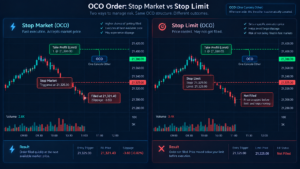
NinjaTrader OCO Orders use “One Cancels Other” logic. Two orders are assigned to the same OCO relationship. If one order is filled, the other is canceled. The classic futures example is an exit bracket: a sell limit order above the market acts as a profit target while a sell stop order below the market acts as a protective exit for a long position.
The purpose is not to predict price. It is to define what should happen after a position is open. Instead of waiting for the target or stop to be reached and then manually canceling the opposite order, the OCO relationship handles that cancellation logic automatically.
This is especially useful for traders who use predefined risk and reward levels. It can also reduce the chance that a forgotten exit order remains working after the other side of the bracket has already filled. However, OCO is an order-management instruction, not a guarantee of a specific fill price or zero slippage.
How OCO Logic Works in NinjaTrader
NinjaTrader OCO Orders are linked through an OCO identifier. In NinjaTrader’s documented order model, the OCO field identifies orders that belong to the same one-cancels-other group. When one linked order reaches the relevant filled state, the companion order is canceled according to the supported routing and platform behavior.
For a simple long futures position, the structure may look like this:
| Order | Purpose | Example | OCO Relationship |
|---|---|---|---|
| Sell Limit | Profit target | 10 points above entry | Linked |
| Sell Stop | Protective exit | 5 points below entry | Linked |
If the target fills first, the stop is canceled. If the protective stop fills first, the target is canceled. The exact execution outcome still depends on order type, market liquidity, volatility, routing, and the status of the connection or server-side functionality being used.
For broader order-type context, see our NinjaTrader Order Types 2026 guide.
OCO Orders and ATM Strategies in NinjaTrader
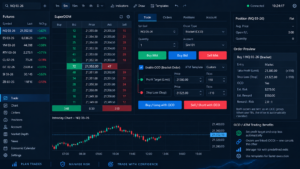
NinjaTrader OCO Orders are closely associated with Advanced Trade Management, or ATM Strategies. NinjaTrader documents that stop-loss and profit-target orders submitted automatically through an ATM Strategy are OCO by default. That means an ATM can place an entry and, once appropriate, manage linked protective and target orders without requiring the trader to build the OCO pair manually each time.
ATM Strategies can also support multiple targets, stop strategies, Auto Breakeven, Auto Trail, and other predefined trade-management behavior. The important distinction is that ATM management is not the same as a historical backtest. NinjaTrader’s developer documentation states that ATM Strategies operate in real time and are not executed on historical data through the ATM Strategy methods.
Our dedicated NinjaTrader ATM Strategy Review 2026 covers the broader ATM workflow, while this page stays focused specifically on OCO behavior.
How to Use Manual OCO Orders in NinjaTrader
Manual NinjaTrader OCO Orders can be useful when you want to link two orders without relying on a prebuilt ATM template. The exact interface depends on the NinjaTrader order-entry window you are using, but the core concept remains the same: enable or define the OCO relationship, submit the linked orders, and then verify that both orders are working as intended.
A disciplined workflow is:
- Confirm the correct account and instrument.
- Define the position size before submitting the bracket.
- Set the intended target order type and price.
- Set the intended protective stop type and trigger price.
- Confirm both orders belong to the same OCO relationship.
- Verify order states after submission.
- Monitor the position until you understand where the relevant orders are being held and how your connection behaves.
For platform-specific instructions, use NinjaTrader’s official help resources and training material. The official documentation is the primary source for current order-entry behavior: NinjaTrader Desktop Help Guide.
Practical NinjaTrader OCO Bracket Example
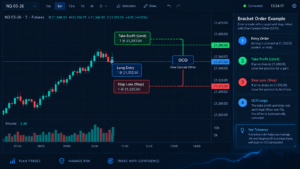
Suppose a trader buys one micro futures contract at 5,000.00. The trader wants a target at 5,010.00 and a protective stop at 4,995.00. The exit orders can be linked as NinjaTrader OCO Orders.
| Action | Order Type | Price | Role |
|---|---|---|---|
| Sell | Limit | 5,010.00 | Profit target |
| Sell | Stop Market or Stop Limit | 4,995.00 trigger | Protective exit |
If price trades to the target and that order fills, the stop order should be canceled as the other side of the OCO pair. If the stop fills first, the target should be canceled. The example is educational only; tick values, slippage, exchange rules, commissions, market conditions, and order-routing behavior can materially affect real results.
Stop Market vs Stop Limit for OCO Orders
One of the most important decisions when configuring NinjaTrader OCO Orders is the protective stop type. A stop-market order prioritizes getting out after the stop is triggered, but the final fill can be worse than the trigger price in a fast or thin market. A stop-limit order adds price control, but it can remain unfilled if the market moves through the limit too quickly.
| Stop Type | Main Advantage | Main Risk | Best Understood As |
|---|---|---|---|
| Stop Market | Prioritizes execution after trigger | Slippage can occur | Execution priority |
| Stop Limit | Defines a limit on acceptable price | May not fill | Price control with fill risk |
NinjaTrader documents both StopMarket and StopLimit order types in its platform and developer materials. The right choice depends on your strategy and risk rules; neither order type eliminates the possibility of adverse execution.
Partial Fills, Multiple Targets and OCO Behavior
NinjaTrader OCO Orders become more complex when an entry is filled in pieces or when a strategy uses multiple targets. NinjaTrader’s ATM documentation notes that a stop or target can represent multiple underlying orders when an entry receives partial fills over time. This is one reason traders should inspect actual order states rather than assuming that one visible label always corresponds to one simple exchange order.
With multi-target ATM templates, different portions of a position may have different targets while stops are managed separately or together depending on the template. Test the exact template in simulation before relying on it with live capital, especially when scaling in or out.
Where Do OCO Orders Reside in NinjaTrader?
Understanding where NinjaTrader OCO Orders and their cancellation logic reside matters because behavior can vary by connection provider. NinjaTrader’s current help guide states that, for the NinjaTrader connection, orders in Accepted, Working, or Suspended state are generally held at the brokerage or exchange unless an unsupported order type must be held on NinjaTrader servers. The same guide says most OCO functionality for that connection is simulated on the local PC.
The provider table is not identical for every connection. NinjaTrader documents native server-side OCO support for some connections and local-PC simulation for others. That means traders should check the exact connection they use rather than assuming all OCO cancellation logic survives a platform or network interruption in the same way.
Before live use, confirm the behavior for your account, connection, order type, and ATM configuration in the official NinjaTrader “Where do your orders reside?” guide. A setup that works in simulation should not be treated as proof that every live failure scenario is covered.
Review NinjaTrader’s futures platform if you want to compare its order-entry, ATM, charting, and automation workflow. Trading futures involves substantial risk of loss.
Common NinjaTrader OCO Orders Mistakes
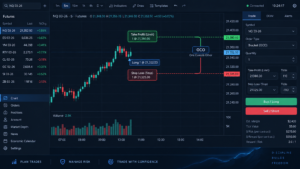
Most problems with NinjaTrader OCO Orders come from configuration, misunderstanding order states, or assuming that automation is equivalent to guaranteed execution. Common mistakes include:
- Using the wrong account: submitting a live order when the intention was simulation.
- Using the wrong quantity: the stop or target size does not match the open position.
- Leaving an order unlinked: the trader assumes two orders are OCO when they are not actually in the same OCO group.
- Confusing stop-market and stop-limit risk: a stop-limit may not fill after activation.
- Ignoring partial fills: entry and exit orders can become more complex when fills occur in pieces.
- Assuming local automation survives every disconnect: server-side and local behavior are not identical.
- Editing active orders without checking the result: changes should be verified in the Orders interface and against the actual position.
If an order is rejected rather than working normally, see our NinjaTrader Order Rejected 2026 guide for a separate troubleshooting workflow.
NinjaTrader OCO Orders Pros and Cons
Pros
- Automates cancellation of the opposite linked order after a fill.
- Works naturally with bracket-style stop and target management.
- Integrates with NinjaTrader ATM Strategies.
- Can reduce manual order-management steps.
- Useful for predefined risk and reward workflows.
Cons
- Does not guarantee fill price or eliminate slippage.
- Stop-limit orders may remain unfilled.
- Partial fills can make order states more complex.
- Local versus server-side behavior must be understood.
- Incorrect quantities or OCO linkage can create operational risk.
Who Should Use NinjaTrader OCO Orders?
NinjaTrader OCO Orders are most useful for futures traders who want predefined exits, bracket orders, or ATM-based risk management. They may fit discretionary day traders, scalpers, and systematic traders who need a clear target-and-stop structure around each position.
Good Fit
- Traders who define stop and target levels before or immediately after entry.
- Users already working with SuperDOM, Chart Trader, or ATM templates.
- Traders who want linked exits rather than two unrelated working orders.
- Users willing to test order behavior in simulation first.
Not a Good Fit
- Anyone expecting OCO logic to guarantee profits or exact execution.
- Traders who do not understand stop-order behavior.
- Users who have not verified the correct account, quantity, and connection.
- Anyone relying on automation without monitoring platform and order status.

Costs, Hidden Costs and Risk Considerations
There is no standalone promise that using NinjaTrader OCO Orders makes a trade cheaper. Real trading costs can include commissions, exchange and regulatory fees, market-data costs, platform or plan costs, bid-ask spread, and slippage. Fast markets can produce fills that differ from expected prices, while a stop-limit can fail to execute if its limit cannot be matched.
The larger operational risk is treating an OCO relationship as a substitute for monitoring. Always check the actual position and working orders after fills, partial fills, reconnects, manual changes, and unusual market events.
NinjaTrader OCO Orders FAQ
What does OCO mean in NinjaTrader?
OCO means One Cancels Other. NinjaTrader OCO Orders are linked so that when one order fills, the other linked order is canceled.
Are ATM stop losses and profit targets OCO?
Yes. NinjaTrader’s help documentation states that stop-loss and profit-target orders submitted automatically through an ATM Strategy are OCO by default.
Can I create OCO orders manually?
Yes. NinjaTrader supports manual OCO functionality in its order-entry tools in addition to OCO behavior generated by ATM Strategies. Verify the relationship and order states after submission.
What happens if a stop-limit order does not fill?
If the stop is triggered but the market moves beyond the acceptable limit price before execution, the stop-limit order can remain unfilled. That is the principal execution risk of using stop-limit protection.
Do NinjaTrader OCO Orders eliminate slippage?
No. NinjaTrader OCO Orders manage the relationship between linked orders; they do not guarantee execution price. Slippage, gaps, liquidity, and volatility can still affect fills.
Can OCO orders be used with multiple targets?
Yes. ATM Strategies can use multiple targets and linked stop-management logic. Partial fills and multi-target templates can result in multiple underlying orders, so test the exact configuration in simulation.
Will OCO orders keep working if NinjaTrader disconnects?
The answer depends on where the relevant order and management logic reside. NinjaTrader documents both local and server-side ATM behavior, so users should verify the exact configuration rather than assuming all automation continues after disconnection.
Final Verdict: Are NinjaTrader OCO Orders Useful in 2026?
NinjaTrader OCO Orders are a practical order-management tool for traders who want a profit target and protective stop to behave as one coordinated bracket. Their main value is operational: after one linked order fills, the other can be canceled automatically instead of relying on the trader to react manually.
They are especially relevant inside NinjaTrader ATM Strategies, where stop-loss and profit-target orders are commonly linked through OCO logic. The feature is useful, but it should be treated as execution infrastructure rather than a trading edge. It cannot remove slippage, prevent every unfilled order, or guarantee that a strategy is profitable.
Before live deployment, test NinjaTrader OCO Orders in simulation, verify order states, understand your stop type, and confirm how local versus server-side functionality behaves for your setup.
Visit NinjaTrader and review the platform if its futures order-management and ATM tools match your trading workflow.
Affiliate Disclosure: Some links on this page are affiliate links. TradeboticsAI may receive compensation if you complete a qualifying action through them.
Risk Disclosure: Futures and derivatives trading involves substantial risk and is not suitable for every investor. Orders may experience slippage, partial fills, rejection, delayed cancellation, or no fill. Simulated and backtested results are hypothetical and do not represent actual trading. TradeboticsAI provides educational technology information, not personalized financial advice.